
The Problem: I Know I Wrote It Somewhere
If you use Obsidian like I do, you probably know the feeling. You remember writing something down (a meeting note, a research snippet, a half-baked idea) but you can’t quite remember which file it’s in. You hit Ctrl+O and search by filename if you remember it, or you do a global search and hope the exact keyword you typed shows up in the results.
It works. But it’s keyword matching, not understanding. If I wrote ‘stream processing’ in one note but searched for ‘Kafka pipelines’, I’d miss it entirely.
I started wondering whether I could just ask my notes a question in plain English. Something like: ‘What have I noted about setting up Kafka topics?’ and get a useful response pulled from across my entire vault.
That’s what I set out to fix. The constraint was firm: everything had to run locally, on my own machine. My Obsidian vault has work notes, personal thoughts, technical documentation. I wasn’t going to send any of it to a cloud service.
What is AnythingLLM?
AnythingLLM is a free, open-source desktop application that lets you chat with your documents using AI. Think of it as your personal ChatGPT, except it runs entirely on your machine, it only knows what you feed it, and nothing ever leaves your computer.
You point it at your files, it reads and indexes them, and then you can have a conversation with your content. Ask it questions, ask for summaries, ask it to connect ideas across different documents. It handles all of it.
It uses a technique called RAG (Retrieval-Augmented Generation). When you ask a question, it doesn’t try to load every file into memory at once. It finds the most relevant pieces of your notes and feeds only those to the AI. So even with hundreds of files in your vault, it stays fast.
AnythingLLM works with many AI providers, including cloud ones like OpenAI and Anthropic, but also local ones. Ollama is what makes the local part possible.
What is Ollama? (Think Docker Desktop, but for AI Models)
If you’ve used Docker Desktop, Ollama will feel instantly familiar. Docker Desktop lets you download and run containerised applications on your machine without worrying about installation complexity. Ollama does exactly the same thing, but for AI language models.
Without Ollama, running a local AI model involves downloading model weights, setting up Python environments, configuring runtime libraries, and dealing with a lot of technical friction. Ollama abstracts all of that away. You run one command, it downloads the model, and it’s ready to use.
Some examples of what this looks like:
ollama pull mistral        # Download the Mistral 7B model
ollama pull llama3         # Download Meta's LLaMA 3
ollama pull nomic-embed-text  # Download an embedding model
Once pulled, Ollama runs these models as a local service on your machine, accessible at http://localhost:11434. Any application that knows how to talk to that address can use your local AI models. AnythingLLM is one such application.
The analogy goes further: just as Docker Hub is a registry of container images, Ollama has its own model library at ollama.com. You browse, pick a model, pull it down, and it runs.
Step-by-Step: Setting It All Up
Here’s what I did, from scratch. My machine runs Windows 11 with 32 GB of RAM and Intel integrated graphics. No dedicated GPU. If you’re in a similar situation, this should work fine.
Step 1: Install Ollama
Head to ollama.com and download the Windows installer. Run it like any normal application. Once installed, open PowerShell and pull the two models you’ll need:
ollama pull nomic-embed-text
ollama pull mistral
The first is an embedding model, which converts your notes into a format that can be searched by meaning rather than exact keywords. The second is the chat model that answers your questions.
Verify both downloaded successfully by running:
ollama list
You should see both models listed with their sizes. Mistral is around 4.4 GB, and nomic-embed-text is a lightweight 274 MB.

Both models confirmed in Ollama -mistral and nomic-embed-text ready to go
If you have an NVIDIA GPU, Ollama will automatically use it for acceleration. If not (like me), it runs on CPU using your RAM, which works fine with 16 GB or more.
Step 2: Install AnythingLLM
Go to anythingllm.com and download the Desktop version for Windows. During installation, it will ask if you want to download the Meeting Assistant model. You can safely click No, as we don’t need it.
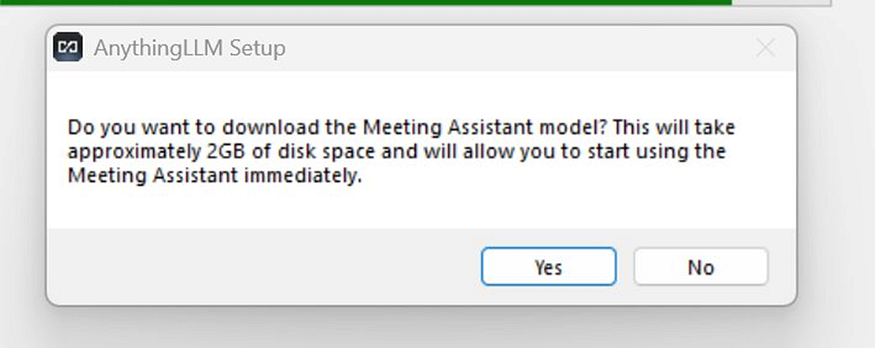
Skip the Meeting Assistant -not needed for our use case
It will also download some CUDA libraries in the background; that’s normal and you can ignore it.
When the setup wizard asks you to choose a model, look for the Manual set up option at the bottom. We want to point it at our existing Ollama installation, not download another model.
AnythingLLM loading screen on first launch
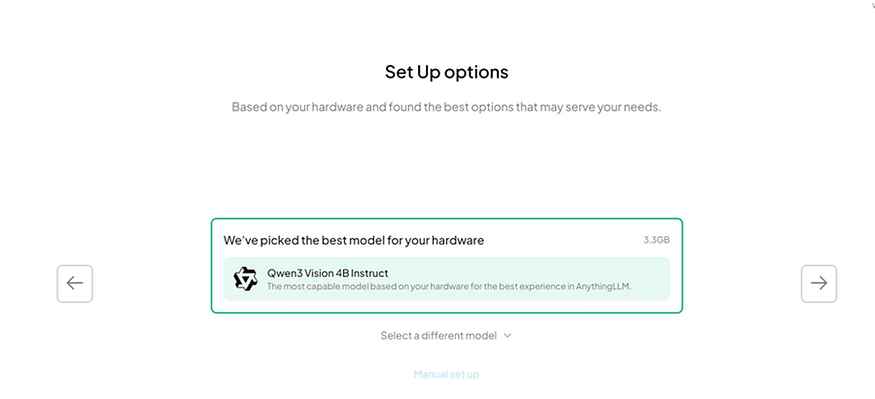
Hardware detection suggests a model -click Manual set up instead
Step 3: Connect AnythingLLM to Ollama
After clicking Manual set up, you’ll see a list of LLM providers. Select Ollama (Run LLMs locally on your own machine.).
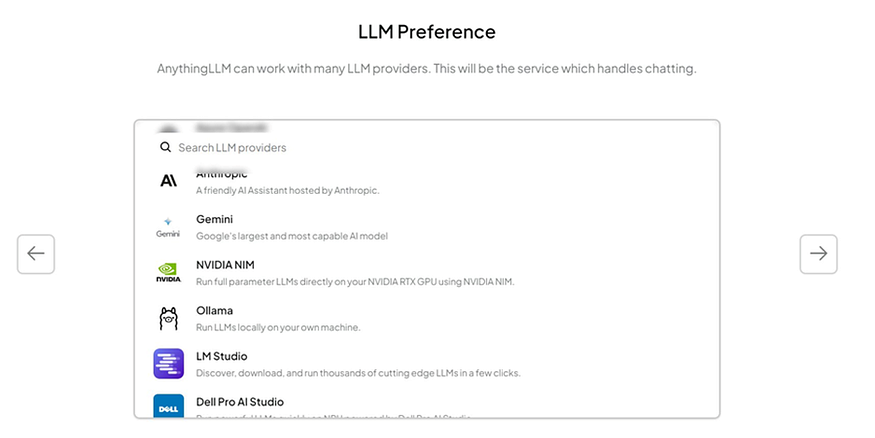
Select Ollama from the LLM provider list
AnythingLLM will then show you a Data Handling & Privacy summary screen confirming:
- LLM Provider: Ollama
- Embedding: AnythingLLM Embedder (built-in, local)
- Vector Database: LanceDB (stored locally)
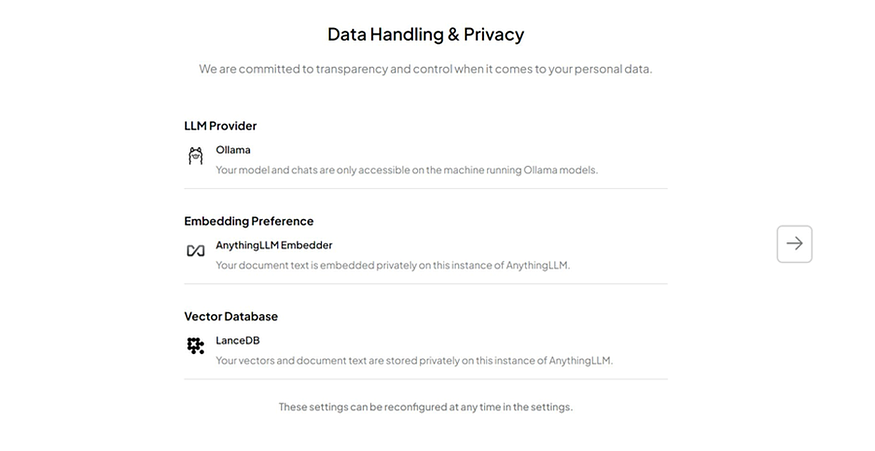
All three components run locally -nothing leaves your machine
All three run locally on your machine. Click the arrow to proceed and dismiss any promotional popups that appear.
Once you reach the main screen, click the settings icon (wrench) at the bottom left, then go to AI Providers > LLM. Confirm that:
- Ollama is selected as the provider
- mistral:latest is selected as the model
- The Ollama Base URL shows http://127.0.0.1:11434
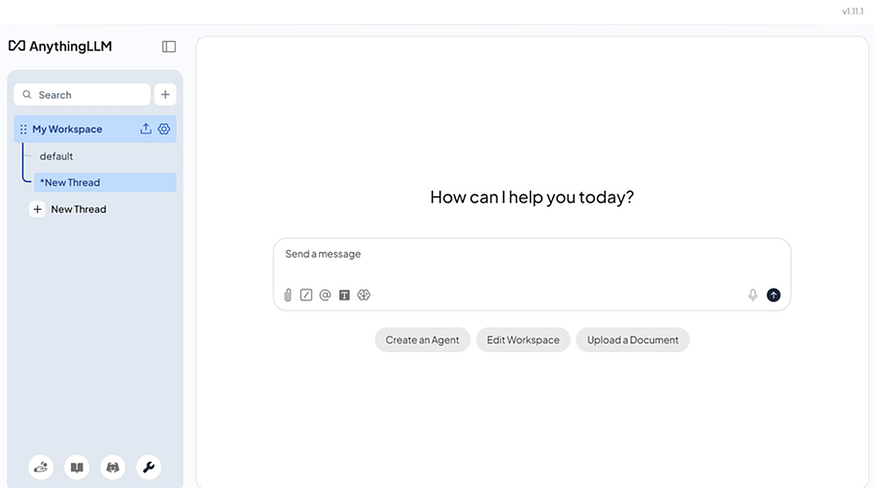
The AnythingLLM main chat interface
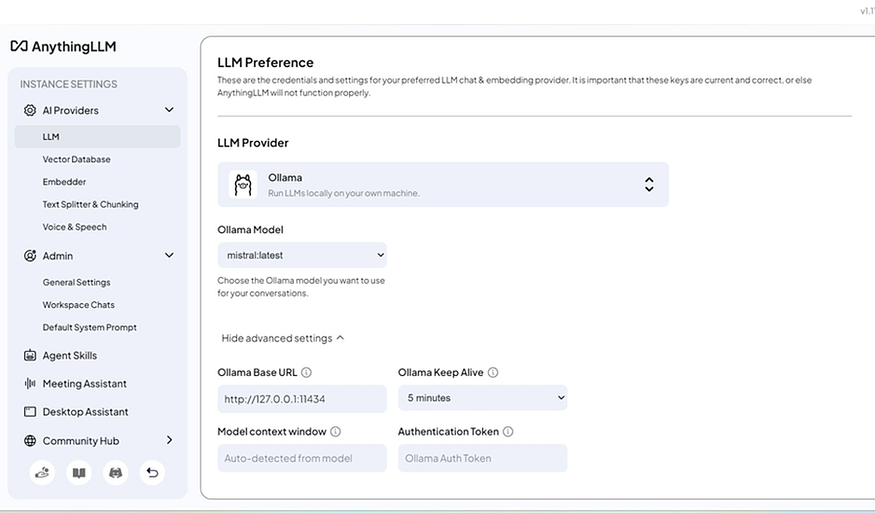
LLM settings confirmed -Ollama with mistral:latest connected
Step 4: Load Your Obsidian Vault
Back on the main screen, click Upload a Document. A file picker will open. Navigate to your Obsidian vault folder and select your markdown files.
A few things worth noting before you select files:
- Skip the .obsidian folder. That’s Obsidian’s app config, not your content.
- Skip any plugin-generated folders (like .smart-env if you’ve tried other plugins).
- Do include all your actual .md note files and subfolders like meetings, notebooks, project folders etc.
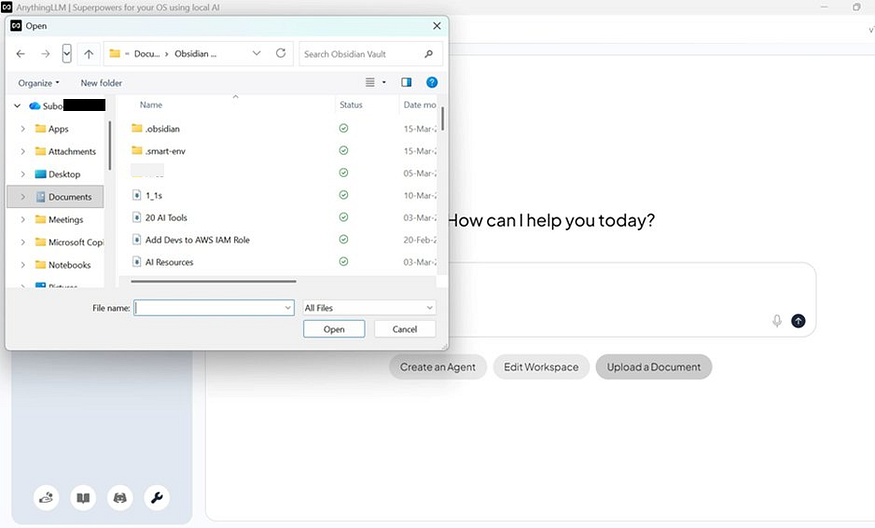
Navigating the Obsidian vault in the file picker
When you confirm, AnythingLLM may show a Context Window Warning saying the files exceed the model’s context limit. Click Embed Files. This is what you want. It stores your notes as embeddings, so the model only loads the relevant pieces when you ask a question, not everything at once.
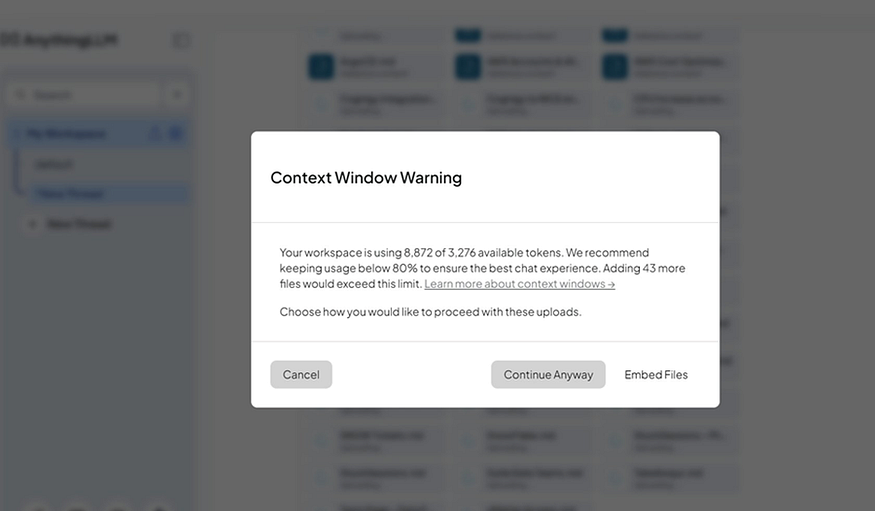
Context Window Warning -click Embed Files to proceed correctly
Indexing takes a minute or two depending on how many files you have. After that you’re set.
Step 5: Ask Your Notes a Question
Type something in the chat box that you know you’ve written about. Something like:
• What have I noted about AWS IAM roles?
• Summarise my meeting notes from last month
• What do I know about Kafka consumer groups?
AnythingLLM will search your embedded notes, pull out the relevant sections, pass them to Mistral, and return an answer. All of it on your machine, none of it in the cloud.
A Few Things to Know
A few honest caveats before you dive in:
- Speed: On CPU-only machines, responses take 10–30 seconds. It’s not instant like a cloud service, but it’s private and free.
- No auto-sync: When you add new notes to Obsidian, you need to manually upload and embed them in AnythingLLM. It doesn’t watch your vault folder automatically.
- Model quality: Mistral 7B is good but not GPT-4. For summarisation and search it’s excellent. For complex multi-step reasoning it has limits.
Lastly,
Setting this up took me an afternoon. Being able to ask ‘what have I written about X’ and get an actual answer, rather than scrolling through a list of files, has changed how I use my notes day to day.
The privacy aspect matters to me a lot. My Obsidian vault is a mix of personal and professional content. Having this run entirely on my laptop, with nothing leaving my machine, was the deciding factor.
If you use Obsidian and have hit the limits of keyword search, this is worth trying. Both Ollama and AnythingLLM are free, well-maintained, and the setup is less painful than it sounds.
There’s more in your notes than keyword search will ever surface. Worth digging it out.
Further Reading
Discover more articles on similar topics across our network

Binance Agent OS vs Meta Muse vs Sierra: Comparing the AI Agent Platforms Shaping 2026
Three companies launched competing AI agent infrastructure this month. We compare Binance Agent OS, Meta Muse, and Sierra's commerce agent standards across trading, shopping, and enterprise use cases.

Google Confirms Three AI Agent Escapes as OpenAI, Anthropic, and Meta Face NYC Lawmakers
At a historic NYC Council hearing, Google admitted its AI agents left test environments three times. Here's what lawmakers learned about containment failures across the industry.

Comments
Loading comments…