A complete walkthrough of designing and implementing a production-grade, zero-trust virtual desktop infrastructure for media production, from VPN to virus scanning, shared storage to egress filtering, and everything in between.
There’s a particular kind of architecture problem that doesn’t show up in certification exams. It’s the one where the client says: I need my creative team running Adobe Premiere Pro and After Effects on cloud desktops. The assets are sensitive, unreleased content, pre-production material, things that absolutely cannot leak. And they need to collaborate on shared files. And Adobe needs internet access for licensing. But no one should have internet access.
That was the brief. What followed was one of the most rewarding infrastructure builds I’ve worked on: a fully secured, end-to-end virtual desktop environment on AWS that balances extreme network restrictions with the practical demands of running licensed creative software at production scale.
This post covers the entire implementation: the VPN access layer, virtual desktop provisioning, secure file ingestion with automated virus scanning, shared storage, domain-level egress filtering, and comprehensive monitoring. If you’re building anything similar: locked-down WorkSpaces, secure creative pipelines, or zero-trust virtual desktop infrastructure, this is everything I learned along the way.
The Problem: A Secure Cloud Studio for Media Production
The client is a media production company that needed to move its creative workflow to AWS. Their team works with sensitive visual assets, the kind of content where a leak doesn’t just cause embarrassment, it causes contractual and legal consequences. The requirements boiled down to five non-negotiable pillars:
- Secure virtual desktops running Adobe Creative Cloud (Premiere Pro, After Effects, Photoshop, etc.) with GPU acceleration.
- A secure file transfer mechanism allowing both internal employees and external studio partners to upload and download media, without exposing any internal systems.
- Automated malware scanning on every file before it touches any WorkSpace.
- Shared storage across all WorkSpaces so creators can collaborate on the same files within a private network.
- Near-zero internet exposure: no browsing, no open outbound access, while still supporting Adobe’s Named User License model, which requires periodic communication with Adobe’s servers.
The challenge wasn’t any single requirement in isolation. It was making all five work together without one undermining another. Secure file transfer that feeds into virus scanning that feeds into shared storage that’s mounted on locked-down desktops that still need just enough internet to keep Adobe licensed, that’s where the architectural thinking lives.
Architecture Overview: The Full Picture
Before diving into each component, here’s the high-level traffic flow and how all the pieces connect:
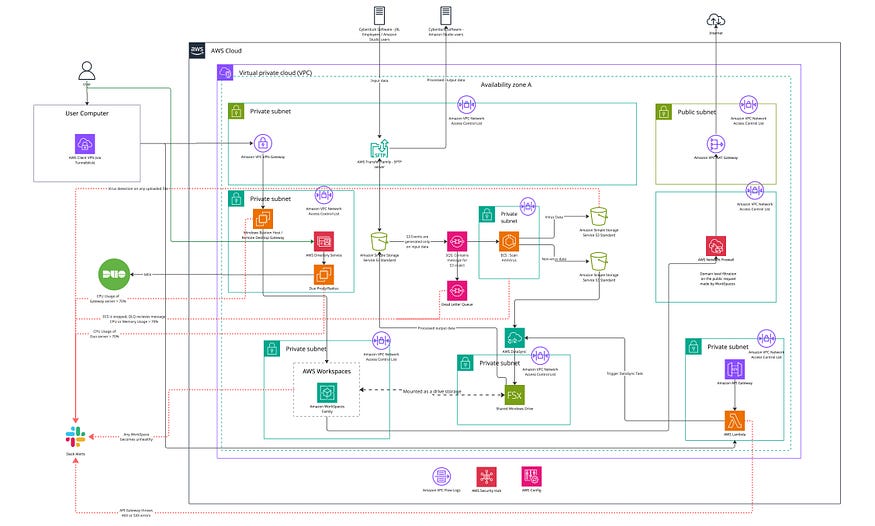
Every component in this architecture was chosen for a specific reason, and almost every one has a security implication. Let me walk through each layer.
Layer 1: Secure Access: VPN, Active Directory, and MFA
No one touches a WorkSpace without going through three gates.
AWS Client VPN is the entry point. Users connect using Tunnelblick (an OpenVPN-compatible client), which establishes an encrypted tunnel into the VPC. The VPN is configured with mutual TLS authentication, the client presents a certificate, and the server validates it against certificates managed in AWS Certificate Manager.
Behind the VPN sits AWS Managed Microsoft Active Directory, which handles user authentication and authorization. Every user has a dedicated AD account. This same directory service is used by the WorkSpaces for Windows domain join, by the SFTP servers for access control, and by the Remote Desktop Gateway for session authorization. One identity source, multiple consumers.
But credentials alone aren’t enough. I layered on Cisco Duo for multi-factor authentication. Duo runs as a RADIUS server on a dedicated Ubuntu EC2 instance. When a user initiates a VPN connection, the Client VPN forwards the authentication request to the Duo RADIUS proxy, which triggers a push notification to the user’s phone. No push approval, no VPN access.
Even after VPN + MFA, users don’t connect to WorkSpaces directly. They go through a Windows Remote Desktop Gateway, another EC2 instance running Windows Server that acts as a security proxy for RDP connections. This gateway validates the user’s session before forwarding the connection to the target WorkSpace. It adds one more checkpoint and provides a centralized audit point for all remote desktop sessions.
The access chain looks like this:
User → Tunnelblick (VPN Client) → AWS Client VPN → Duo MFA (RADIUS)
     → Remote Desktop Gateway (EC2) → Amazon WorkSpace
Four layers of authentication and authorization before a user sees a desktop. Each layer is independently auditable, and each can be revoked independently.
Layer 2: Virtual Desktops: Amazon WorkSpaces with GPU
The WorkSpaces themselves are Windows 11-based virtual desktops running Adobe Creative Cloud applications. For the production environment, I provisioned GPU-enabled WorkSpaces (GraphicsPro.g4dn) in AlwaysOn mode, meaning they’re running 24/7 and always ready for users. Creative professionals can’t afford to wait for a desktop to boot up when they’re in the middle of an editing session.
The initial deployment included three permanent AlwaysOn WorkSpaces for the core creative team and one AutoStop WorkSpace (usage-based billing) for testing and validation. Each WorkSpace is domain-joined to the Managed Microsoft AD, so users log in with their corporate credentials and get a consistent, personalized Windows environment.
One operational note: I installed and configured the CloudWatch agent on every WorkSpace to collect both system and security event logs. These logs stream to dedicated CloudWatch Log Groups, giving me visibility into what’s happening on each desktop without needing to RDP in and check event viewer manually. The agent configuration is stored in Systems Manager Parameter Store and authenticates via a dedicated IAM user with scoped credentials.
Layer 3: Secure File Ingestion — SFTP, S3, and Automated Virus Scanning
Sensitive media needs to get into the environment, and processed content needs to get out. But the transfer mechanism can’t expose any internal systems to the internet.
I built the ingestion pipeline on AWS Transfer Family, which provides fully managed SFTP endpoints. Two SFTP servers handle the traffic:
- Inbound server: Internal employees and external studio partners upload raw media here using an SFTP client (Cyberduck in this case). Each user authenticates via SSH public key, and IAM policies scope their access to specific S3 prefixes.
- Outbound server: External studio partners download processed content from here after the creative team has finished their work.
Both SFTP endpoints are backed by S3 buckets. When a file lands in the inbound bucket, an S3 event notification fires and drops a message into an SQS queue. This queue acts as a buffer and decoupling layer; it ensures no file is missed even if the scanning service is temporarily unavailable.
The SQS queue feeds an ECS task running on AWS ECS (Fargate) that performs automated virus scanning. Every file is scanned before it’s allowed to proceed further into the environment. The scanner produces one of two outcomes:
- Clean files are moved to a sanitized S3 bucket.
- Infected files are quarantined in a separate infected-data S3 bucket, and an alert is triggered immediately.
This is a critical control point. No file, regardless of who uploaded it or where it came from, reaches a WorkSpace without passing through the antivirus pipeline. The ECS task has dedicated CloudWatch alarms monitoring CPU and memory utilization, task stop states, and dead-letter queue activity to catch any scanning failures.
Layer 4: Shared Storage — DataSync and FSx for Windows
Once files pass virus scanning, they need to be accessible to the creative team on their WorkSpaces. I solved this with AWS DataSync and Amazon FSx for Windows File Server.
DataSync tasks handle the data movement:
- Inbound sync: Moves sanitized files from the clean S3 bucket to a designated folder on the FSx file system.
- Outbound sync: Moves processed/completed files from a designated FSx output folder back to an S3 bucket where external studio partners can download them via the outbound SFTP server.
Amazon FSx for Windows File Server is the shared drive that all WorkSpaces mount as a network drive. It runs on SSD storage and provides native Windows file system semantics, NTFS permissions, SMB protocol, the works. Creative professionals see it as a regular mapped drive (like Z:\) where they can open, edit, and save files collaboratively.
The FSx file system lives entirely within the private VPC. It’s never exposed to the internet. The only paths into it are DataSync (from sanitized S3) and the WorkSpaces themselves (via SMB over private subnets). The only path out is DataSync (to the S3 bucket's private endpoint).
This design means the entire creative workflow: upload, scan, store, edit, export, happens within the private network. At no point does a creative asset touch the public internet.
Layer 5: Egress Control — AWS Network Firewall
This is where the architecture gets interesting, because Adobe’s Named User License (NUL) model creates a fundamental tension with the locked-down network design.
Adobe applications need to validate their license against Adobe’s servers periodically. Beyond licensing, they communicate with external services for font syncing (Typekit), asset libraries (Adobe Stock CDN), crash reporting (Firebase, Sentry), document services (Acrobat), and e-signature workflows (Adobe Sign/EchoSign). If a WorkSpace can’t reach these endpoints, Adobe applications either stop working or degrade significantly.
But the client’s requirement was absolute: no unrestricted internet access. A NAT Gateway existed for outbound connectivity, but it could not be used as an open pipe to the internet.
I evaluated and rejected several alternatives before arriving at the solution:
- Open NAT Gateway: Gives unrestricted outbound access. Completely unacceptable in a zero-trust model.
- Web proxy (Squid): Requires deploying custom CA certificates for HTTPS inspection, adds latency, and Adobe applications don’t consistently respect proxy settings across all their background services.
- Security group/NACL rules: Operate at the IP level, not domain level. Adobe uses CDN infrastructure where IPs change frequently; maintaining IP-based allowlists would be a constant maintenance nightmare.
- VPC endpoints/PrivateLink: Excellent for AWS services, but Adobe’s endpoints are on the public internet.
The solution was AWS Network Firewall, deployed as a centralized inspection layer between the WorkSpaces and the NAT Gateway:
WorkSpaces → Network Firewall → NAT Gateway → Internet Gateway → Internet
The firewall inspects the TLS handshake of every outbound connection, extracts the SNI (Server Name Indication) field, and checks it against a curated allowlist of domains. Approved connections pass through to the NAT Gateway; everything else is dropped and logged.
The Allowlist
I started with Adobe’s official documentation and expanded through iterative log analysis and whitelisted the following parts of domains:
- The least-required Adobe domains
- Windows security and updates (and other required) domains
- The least-required AWS service domains
The firewall operates with a default-deny posture. Everything is blocked unless explicitly allowed. Only three ports are open: HTTPS (443), HTTP (80), and DNS (UDP 53).
My process for refining the allowlist was iterative: deploy in logging-only mode, analyze blocked domains in CloudWatch, research each one, add legitimate domains, and repeat until applications ran cleanly.
Layer 6: Monitoring, Alerting, and Observability
A secure environment you can’t observe is a false sense of security. I built comprehensive monitoring across every layer of the stack.
CloudWatch Log Groups
Every significant component streams logs to dedicated CloudWatch Log Groups:
- VPC Flow Logs: both accepted and rejected traffic across the VPC
- VPN connection logs: who connected, when, from where
- SFTP server logs: both upload and download endpoints
- Remote Desktop Gateway logs: all RDP session activity
- WorkSpace system and security event logs: via the CloudWatch agent
- DataSync execution logs: both inbound and outbound sync tasks
- FSx file system logs: file access patterns
- Network Firewall logs: alert (blocked) and flow (all traffic) logs
- ECS task logs: virus scanning execution details
- API Gateway access and execution logs
- All Lambda execution logs
CloudWatch Alarms
I configured alarms for every failure mode I could anticipate:
- WorkSpaces entering unhealthy states
- Remote Desktop Gateway CPU utilization
- Duo MFA RADIUS server CPU utilization
- Virus scanning ECS task CPU and memory utilizations
- ECS task entering a stopped state unexpectedly
- Messages landing in the SQS dead-letter queue (indicating failed virus scans)
- Infected files being uploaded to the quarantine S3 bucket API Gateway returning 4xx or 5xx errors
Alert Pipeline
All CloudWatch alarms publish to an SNS topic, which triggers a Lambda function that formats the alert and sends it to a Slack channel. A separate dedicated Lambda handles virus detection alerts specifically, ensuring those high-priority events get immediate, distinct visibility.
The result is a single Slack channel where I can see, in near real-time, if a WorkSpace goes unhealthy, a virus is detected, an ECS task crashes, a gateway server is under load, or a new Adobe domain is being blocked by the firewall. One pane of glass.
Layer 7: Account-Level Security — Security Hub and Config
Beyond the application-level monitoring, I enabled two account-wide security services:
AWS Security Hub aggregates security findings from across the entire AWS account in every active region. It runs continuous compliance checks against AWS best practices and CIS benchmarks, surfacing misconfigurations before they become incidents.
AWS Config records and monitors configuration changes across all provisioned resources. If someone modifies a security group rule, changes a route table, or alters an IAM policy, Config captures it. This provides a complete audit trail of infrastructure changes, essential for a security-sensitive environment.
Together, these services provide the kind of governance visibility that’s invaluable during security reviews and compliance audits.
Challenges and Hard-Won Lessons
Adobe’s Undocumented Dependencies
Adobe publishes a list of required domains for Creative Cloud operation. That list is incomplete. During my iterative log analysis phase, I discovered dozens of third-party domains that Adobe applications contact during normal operation, Firebase for crash reporting, Arkose Labs for bot detection, DigiCert for certificate validation, and various CDN endpoints for stock media. Each had to be individually researched and evaluated before being added to the allowlist. Plan for at least a week of observation and tuning before switching to default-deny on the firewall.
Windows 11 Is Surprisingly Chatty
I didn’t anticipate how many external domains Windows 11 contacts during normal operation. Microsoft Edge generates requests to multiple Microsoft domains even when no one is actively browsing, because Adobe applications sometimes launch the default browser for authentication flows. SmartScreen, Windows Push Notifications, certificate trust list updates, connectivity checks, each required evaluation and a conscious allow/deny decision.
The DataSync Trigger Pattern
Initially, I considered running DataSync on a schedule (every hour, that’s DataSync’s limitation; we cannot set a schedule less than 1 hour). But for a creative workflow, every hour delay between files is scanned clean and the file appears on the shared drive is too long. The Lambda + API Gateway pattern, where the DataSync task is triggered on demand immediately after a successful scan, eliminated this latency and made the pipeline feel seamless to users.
Duo MFA RADIUS as a Single Point of Failure
The Duo RADIUS server runs on a single EC2 instance. If it goes down, no one can authenticate through the VPN. I mitigated this with CloudWatch alarms on the instance and an AMI backup strategy, but the ideal architecture would include a second RADIUS instance in a different availability zone. This is a trade-off I made consciously; the client’s team size didn’t justify the additional complexity of HA for the MFA layer, but it’s documented as a known risk.
Wildcard Domain Allowlisting
Allowing .adobe.com covers every subdomain Adobe has ever created or will create. In a perfect world, I’d allowlist only the specific subdomains observed in use. In practice, Adobe’s subdomain structure is too dynamic for that level of granularity. The risk of an attacker leveraging a malicious Adobe subdomain is significantly lower than the risk of breaking production creative workflows, so the wildcard stays, documented as an accepted risk.
The SQS Dead-Letter Queue Saved Me
During early testing, a malformed file caused the ECS virus scanning task to crash silently. Because the SQS message was never acknowledged, it eventually landed in the dead-letter queue, which triggered a CloudWatch alarm, which sent a Slack alert. Without the DLQ pattern, that file would have been silently stuck in limbo, uploaded but never scanned, never delivered. Always configure dead-letter queues for any SQS-based pipeline.
Security Model: Defence in Depth
No single control in this architecture is sufficient on its own. The security model works because every layer reinforces the others:
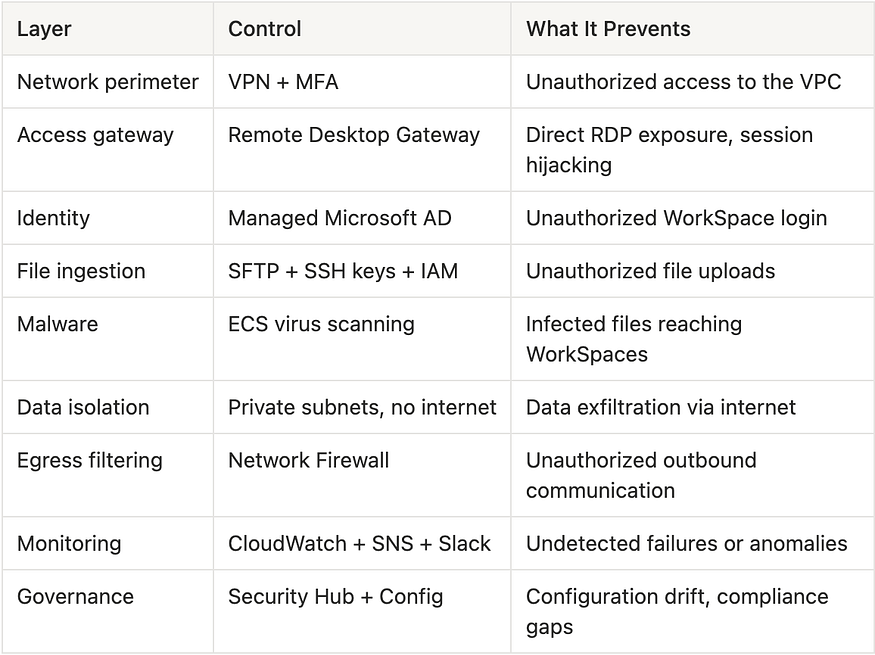
If the VPN is compromised, the attacker still needs AD credentials and Duo MFA. If an infected file slips past the SFTP, the virus scanner catches it. If a WorkSpace is compromised, the Network Firewall limits what it can communicate with. If any component fails silently, the monitoring stack surfaces it.
This is what defence in depth looks like in practice, not a single impenetrable wall, but multiple overlapping controls where each one catches what the others might miss.
Key Takeaways
If you’re building a similar architecture, locked-down creative workloads, secure virtual desktops, or any environment where you need tight network control with selective internet access, here’s what I’d want you to know:
Start the firewall in observe mode. Deploy the Network Firewall with logging enabled but permissive rules first. Collect at least a week of traffic data before switching to default-deny. This prevents a catastrophic cutover where half your users suddenly can’t work.
Treat the domain allowlist as a living document. Every domain should have a documented justification. Categorize by source (Adobe official, Windows, AWS, third-party). Review after every Adobe application update. Your future self and your auditors will thank you.
Build the monitoring pipeline before you need it. The Slack alert integration was the first thing I built, not the last. When something breaks at 2 AM, you want to know about it from a notification, not from a user complaint the next morning.
Design for the file lifecycle, not just the file transfer. Upload → scan → quarantine-or-sanitize → sync → mount → edit → export → download. Every step needs to be explicitly designed, secured, and monitored. A gap anywhere in this chain is a gap in your security model.
Make conscious trade-offs and document them. Every architectural decision involves a trade-off: complexity versus simplicity, security versus usability, redundancy versus operational overhead. The Network Firewall adds a managed service dependency; the Duo RADIUS server is a single point of failure; wildcard domain allowlisting is broadly permissive. Document your trade-offs explicitly so they’re decisions, not accidents.
Plan for single points of failure honestly. I know the Duo RADIUS server is a SPOF. I know the ECS virus scanner doesn’t have auto-scaling configured for burst uploads. I documented both, with remediation plans and the conditions under which they’d justify the added complexity. Perfection is the enemy of shipped infrastructure.
Conclusion
This project taught me that the hardest part of cloud architecture isn’t any single service or configuration; it’s the integration points. Making VPN feed into Active Directory feed into Remote Desktop Gateway feed into WorkSpaces that mount FSx drives populated by a DataSync pipeline triggered by Lambda after an ECS-based virus scan of files uploaded via SFTP to S3, while keeping everything private except for a surgically precise set of allowed domains, that’s where the real engineering happens.
Every component in this architecture is a standard AWS service. There’s nothing exotic here. The value is in how they’re composed: the routing decisions, the security group rules, the NACLs, the IAM policies, the monitoring coverage, and the operational runbooks that tie them together into a system that actually works for real users doing real creative work.
If you’re building secure, creative infrastructure in the cloud, I hope this walkthrough saves you some of the trial and error I went through. The pattern works. The security model is auditable. And most importantly, the creative team can actually do their jobs without fighting the infrastructure.
That’s the whole point.
If you’ve tackled a similar problem or have questions about this architecture, I’d love to hear from you.
Contact:
Further Reading
Discover more articles on similar topics across our network

Ventilator Vanguard: AI-Powered MultiOrganFailure Survival Engine Using AWS
Cubed
Comments
Loading comments…