This topic provides links to information about how to install, update, and uninstall version 2 of the AWS Command Line Interface (AWS CLI) on the supported operating systems. The AWS Command Line Interface (CLI) is a unified tool to manage your AWS services. With just one tool to download and configure, you can control multiple AWS services from the command line and automate them through scripts.
The AWS CLI v2 offers several new features including improved installers, new configuration options such as AWS Single Sign-On (SSO), and various interactive features.
Installation of AWS CLI Version2 :
- Go and click on this link and choose your Operating System or Docker.
- If you use Windows as an Operating System then check the Prerequisites you require.
Prerequisites
Before you can install or update the AWS CLI version 2 on Windows, be sure you have the following:
- A 64-bit version of Windows XP or later.
- Admin rights to install software
- Download and run the AWS CLI MSI installer for Windows (64-bit):
- Click the below link for the latest version of the AWS CLI: https://awscli.amazonaws.com/AWSCLIV2.msi
- Click the Run option and then Next Option and the check the License Agreement and then click Next.


- Default Location of this AWS CLI executable file as shown in the image. If you want to change the location then Click the Browse option and set the location you want. Click the Next and then click Install and after installation is complete, click Finish.


- To confirm the installation, open the Start menu, search for CMD to open a command prompt window.

- At the command prompt use the following commands:
1. aws --version
2. where aws
3. where c:\aws
And if it shows this type of error as shown in the image then follow the next step:

- Open the Start menu or Go to search and enter
environment variables.

- Choose Edit environment variables for your account.

- Choose PATH, and then choose Edit.

- Add the path you found into the Variable value field, for example,
C:\Program Files\Amazon\AWSCLIV2
And if this location is already shown then leave and move to the next step 13.
- Choose OK twice to apply the new settings.
- Close any running command prompts and reopen the command prompt window.
- Open the Start menu or Go to search and enter **CMD **and Run as administrator.

- Click **Yes **and then run all the commands as shown in the below image:


AWS CLI Installation is Completed.
Uninstall the AWS CLI version 2 from Windows
- Open Programs and Features by doing one of the following:
- Open the Control Panel, and then choose Programs and Features.
- Open a command prompt, and then enter the following command.
C:\> appwiz.cpl
- Select the entry named AWS Command Line Interface, and then choose Uninstall to launch the uninstaller.
- Confirm that you want to uninstall the AWS CLI.
Conclusion
I hope this blog helps save you time and money so that you can spend them with your loved ones. Keep smiling and show some love!
Buy Me a Coffee :
Connect me on Linkedin :
References:
http://d1.awsstatic.com/whitepapers/aws_pricing_overview.pdf
Other Blogs:
**Login to MULTIPLE AWS Accounts at onc**e *With this Trick!*medium.com
Thank you for reading, if you enjoyed it, please hit the clap button.
Follow us for more content.
**Check out AWS in Plain English for more AWS-related content.
*More content at **plainenglish.io*.
Further Reading
Discover more articles on similar topics across our network

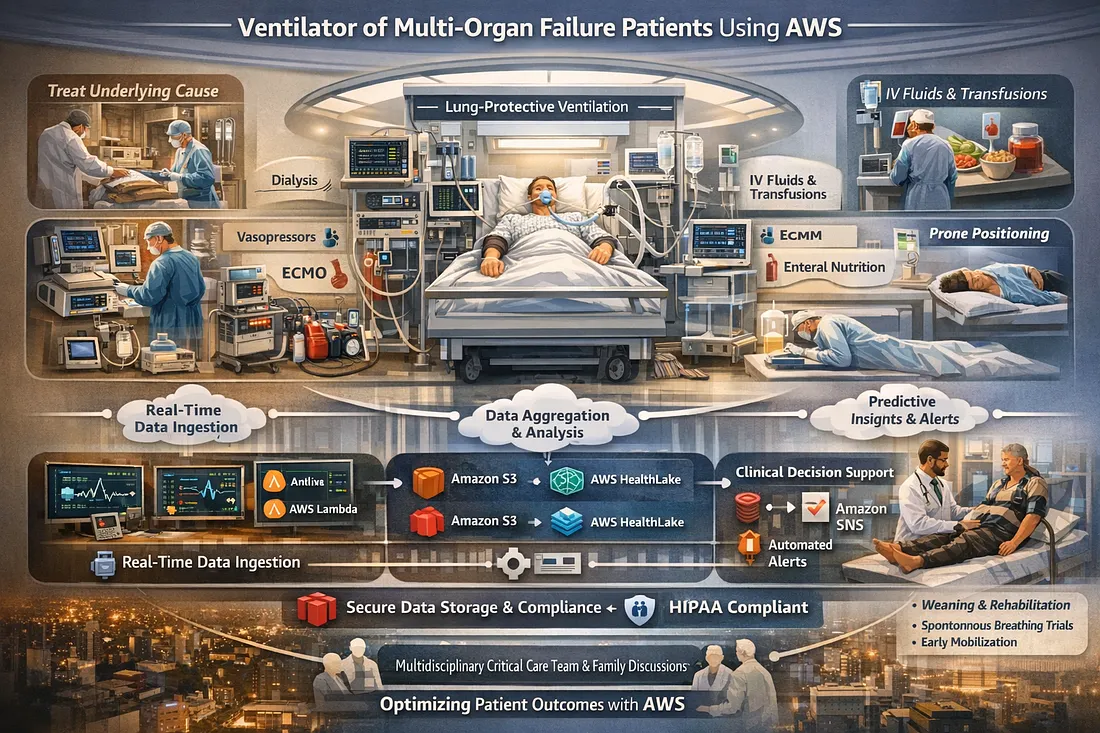
Ventilator Vanguard: AI-Powered MultiOrganFailure Survival Engine Using AWS
Cubed
Comments
Loading comments…