Anyone who has recorded a training video knows the routine: set up the lights, check the audio, stumble through a take, then do it all again when a policy changes two weeks later. For corporate trainers, course creators and teachers, the real cost of video is not the first recording but the endless re-recording. A talking presenter generated from text changes that equation. You update the script, regenerate, and the lesson is current.
This guide walks through building a presenter-led video from scratch. We will cover how to choose a look that suits your audience, write a script that sounds natural when spoken by a digital presenter, set up voice and language, and assemble the final lesson. Along the way we will flag the mistakes that make avatar videos feel stiff, so your first attempt lands closer to your fifth.
Why a Presenter on Screen Still Matters
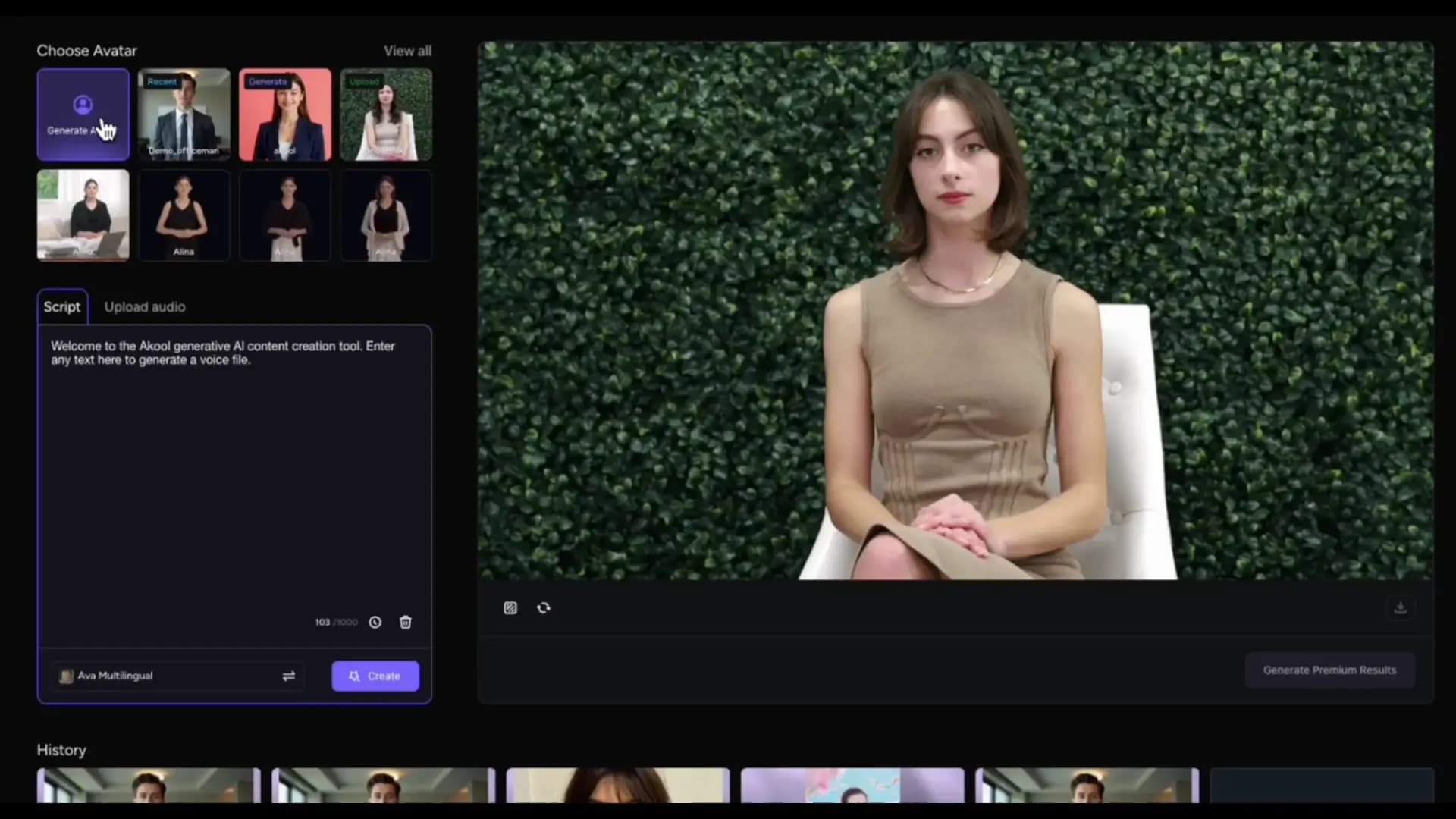
Narration over slides works, but a visible face adds warmth and helps viewers stay with the material. Learners tend to trust content that feels like it comes from a person, and a presenter can guide attention with gestures and expression in ways a voice alone cannot. This is where an AI avatar generator earns its place: it provides that human presence without a camera, a studio or a scheduling headache.
It is also practical for teams. A consistent presenter across a whole course library gives learners a familiar guide, and it means the person who knows the subject best does not have to be the one who performs it on camera.
Step One: Choose a Look That Fits the Audience
Start by deciding who your viewers are. A compliance course for new hires calls for a calm, professional appearance. A language lesson for teenagers can be friendlier and more casual. Match clothing style, background and overall energy to the setting where the video will be watched.
Realistic or Stylized
Realistic presenters feel natural in formal training, while stylized ones can work well for younger audiences or playful brands. Whichever direction you choose, stay consistent across the series so learners are not distracted by sudden changes from one lesson to the next.
Using Your Own Likeness
Some teams prefer a presenter based on a real instructor, with that person's agreement. This keeps the familiar face learners already know. Make sure the permission covers how and where the videos will be used, and put it in writing before production begins.
Step Two: Write for the Ear
Scripts written for reading sound stiff when spoken. Use short sentences, everyday words and one idea per paragraph. Read each line aloud before pasting it in. If you run out of breath or stumble, the presenter will too. Put pauses where a human would pause by breaking long thoughts into separate lines. A few habits make a noticeable difference:
- Open with the outcome, such as what the learner will be able to do by the end
- Keep each segment short enough to hold attention
- Spell out acronyms the first time they appear
- Write numbers the way you want them spoken
- Close with one clear next step
Pronunciation deserves a quick test. Names, product terms and technical vocabulary are the usual troublemakers. Generate a short sample and listen for words that sound wrong, then adjust the spelling or add phonetic hints until they sound right.
Step Three: Set Up Voice and Language
Voice carries more of the experience than most people expect. Choose a pace that suits the topic: slower for dense technical content, a little brisker for introductions and recaps. Pick a tone that matches the presenter's appearance, because a mismatch between a formal look and a casual voice feels odd even when viewers cannot say why.
If your learners speak several languages, generating localized versions from the same script saves a great deal of effort. Translate the script with a native speaker's review, then regenerate the video so lip movements follow the new audio. Platforms like AKOOL support multiple languages within one workflow, which helps keep the presenter consistent across versions.
Step Four: Assemble and Refine the Lesson
Generated footage of the presenter is only one layer. Add slides, screen recordings, diagrams and captions around it. Place the presenter in a corner during demonstrations and give them the full frame for introductions and summaries. Captions help with accessibility and serve viewers who watch without sound.
Then review the full lesson as a learner would. Watch for moments where the presenter's expression does not match the content, such as a cheerful tone during a safety warning, and rewrite the line or split the segment. Ask one or two real learners to try the lesson and note where they pause or rewind. Those spots show exactly where the script needs more work.
Mistakes That Make Avatar Videos Feel Stiff
Long unbroken monologues are the biggest culprit. Break them up with visuals every twenty to thirty seconds so the screen keeps changing. Overly formal wording is another; contractions and plain language sound more human. A third is neglecting updates. One of the main benefits of this method is easy revision, so schedule a regular review to refresh outdated lessons instead of letting them age quietly.
Finally, avoid cramming too much into a single video. A series of focused lessons is easier to produce, easier to update and easier for learners to navigate than one long session that tries to cover everything.
From Script to Screen, Without the Camera
Building a talking presenter comes down to a handful of decisions made in the right order: pick a look that suits your audience, write for the ear, set a voice and language that match, and assemble the lesson with supporting visuals. Each step is small, and together they remove the need for repeated recording sessions.
Start with one short lesson, something you already teach well, and use it to learn the workflow. Once you see how quickly a script change becomes a finished update, scaling up to a full course feels far less daunting. The goal is not to replace the teacher but to give their knowledge a format that is easy to produce, share and keep current.
Further Reading
Discover more articles on similar topics across our network



Comments
Loading comments…