Video editing used to be one of the most expensive parts of making content. A professional editing suite could cost hundreds of dollars a year, and the learning curve was steep enough to put most beginners off before they ever cut their first clip. That has changed. Today, a long list of editors promise professional results for nothing — no subscription, no upfront payment, no catch. The question is what “free” actually buys you, because not every free editor is free in the same way.
Some are genuinely free, with no watermark and no export limits. Others let you edit for free but stamp a logo across your finished video, cap your exports at low resolution, or lock the features you actually need behind a paywall. The difference matters: a watermarked export can make a polished video look unfinished, and an export limit can turn a simple project into a frustrating afternoon. This comparison looks at what the main free editors really offer, where each one shines, and which one fits the kind of videos you make.
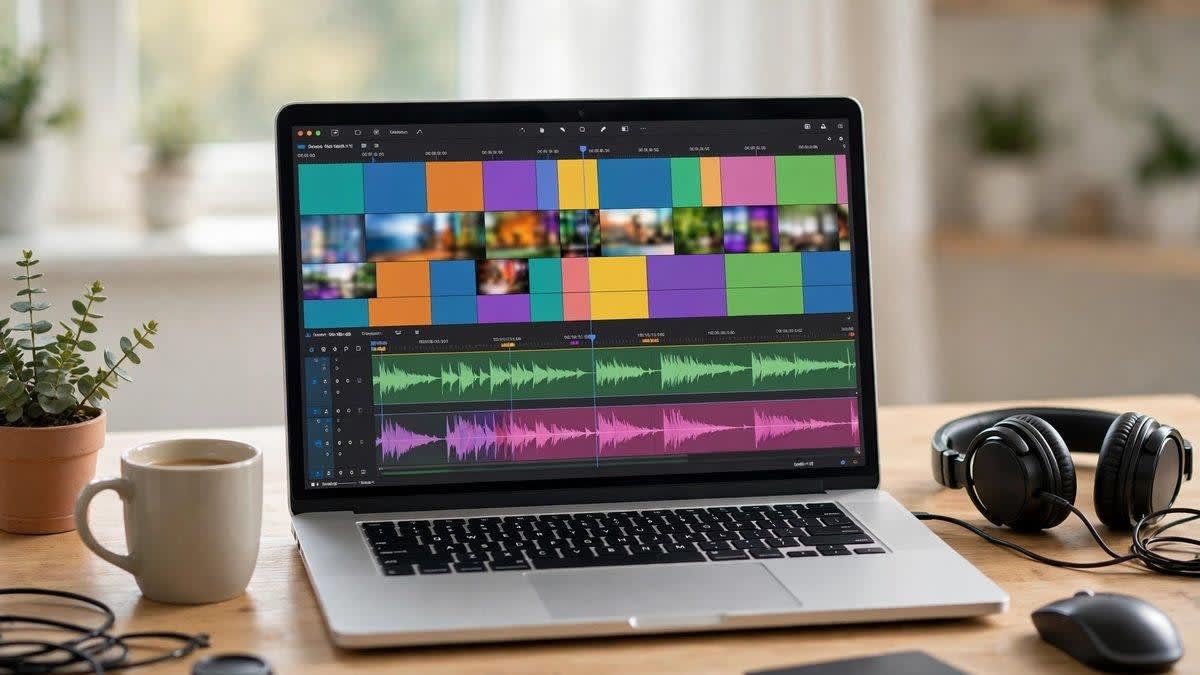
What Free Really Means in Video Editing
Before comparing names, it helps to know the four ways free editors usually pay for themselves. The first is the watermark: the editor is free to use, but every exported video carries the company’s logo in the corner. Some watermarks are small and easy to ignore; others sit in the middle of the frame and cannot be removed without paying.
The second is the export limit. Some editors cap free exports at 720p, limit how many videos you can export each month, or restrict the length of each project. The third is the feature lock: trimming and cutting are free, but colour grading, motion tracking, or 4K export need a paid plan. The fourth is the upsell — templates, stock music, and effects that look free until you try to use them in a finished export.
None of these is automatically a deal-breaker. A watermark might not matter for a quick family video, and a 720p cap is fine if your audience watches on a phone. The problem is only when the limit shows up after you have spent an hour editing. A good free editor is upfront about its limits, and the best ones have almost none that matter for everyday projects.
The Main Free Editors, Compared
If most of your editing is short videos for social media, tutorials, or product clips, a browser-based editor is often the fastest route. You can try a free video editor no watermark that works entirely in your browser — no large download, no installation, and no watermark on the finished export. The better ones support 1080p output, captions, and simple timeline editing, which covers most everyday projects without ever opening a desktop app. For quick turnarounds, that convenience is hard to beat.
The free editors worth considering fall into three groups: full desktop suites with a genuinely free tier, simpler desktop editors built for beginners, and browser-based editors that run entirely online. Each group has a different trade-off between power, ease of use, and what you get at export time. The rest of this comparison walks through the best-known option in each group, so you can see which trade-off suits you.
DaVinci Resolve — The Professional Free Tier
DaVinci Resolve is the editor professionals mention first when the word free comes up, and for good reason. Its free version includes a full editing timeline, professional colour grading tools, audio mixing, and visual effects — the same core toolset used on real film and television productions. There is no watermark, and free exports are not capped at a low resolution.
The trade-off is complexity. Resolve is a large download, it wants a reasonably powerful computer, and its interface can feel overwhelming the first time you open it. If you edit often and want to grow into professional tools, that investment pays off. If you only cut a short video now and then, the learning curve may be more than the project needs.
Clipchamp — Simple, and Built Into Windows
Clipchamp is Microsoft’s video editor, and it comes with a straightforward promise: open it, drag clips onto a timeline, add text or music, and export. It is designed for people who want a finished video without learning an editing suite, and its templates and stock library make short social videos genuinely quick to produce.
The free tier covers the basics well, but some templates, stock assets, and effects are marked premium, and you will notice them when you try to use them. It is a good fit for quick edits and beginners, less so for anyone who wants fine control over colour, audio, or motion.
OpenShot and Shotcut — Open Source and Honest
OpenShot and Shotcut are both open-source editors, which means they are free in the fullest sense: no watermark, no export limits, no premium tier waiting at the end. Both handle the fundamentals — trimming, transitions, titles, and audio — and both run on Windows, Mac, and Linux.
Their weakness is polish. The interfaces feel dated next to commercial editors, and some tasks take more clicks than they should. Performance can be uneven on larger projects, and support comes from community forums rather than a help desk. For straightforward editing on any platform, though, they are hard to fault at the price.
Browser-Based Editors — Editing Without Installing Anything
The newest group is editors that live entirely in the browser. You upload clips, edit on a timeline, and export — nothing to install, and your projects follow you across devices. For creators who work from different computers, or who need a quick revision away from their main machine, that flexibility is a real advantage.
The catch is usually the internet connection and the export conditions. Large files take time to upload, and some browser editors limit resolution or add branding on free plans. Before starting a longer project, it is worth checking the export settings and previewing the final frame so nothing unexpected appears in the finished video.
What to Watch Out For Before You Commit
Whichever editor you pick, a few checks save trouble later. First, export a short test clip before investing time in a real project — that is when watermarks, resolution caps, and branding show up. Second, check the licence on templates, music, and stock footage before publishing anything commercial; a free asset is not always free to use in monetised content.
Third, think about where your projects live. Desktop editors keep files on your machine, which is good for privacy and large footage. Browser editors store projects online, which is convenient but worth knowing before you upload client work. Finally, check that the editor can open the file types your camera or phone produces — most handle common formats, but some struggle with newer codecs.
It is also worth checking how often the editor is updated. Video formats and platform requirements change quickly, and an editor that has not been updated in a year may struggle with footage from a new phone or camera. Active projects — whether commercial or open source — tend to keep up, while abandoned ones quietly fall behind.
Which Free Editor Should You Pick?
For serious editing with room to grow, DaVinci Resolve is the strongest free option — professional tools, no watermark, and no meaningful export limits, in exchange for a steeper learning curve. For quick social videos and simple edits, Clipchamp or a browser-based editor will get you finished faster with far less to learn.
If you want a free editor with no strings attached at all, OpenShot or Shotcut deliver honest, watermark-free editing on any platform. And if you edit from different devices or want to skip the installation entirely, a browser-based editor that exports cleanly at 1080p is the most convenient choice of the lot.
The Bottom Line
Free video editing is genuinely good — good enough that most creators never need to pay for an editor at all. The trick is matching the editor to the job: pick the professional free tier when you want power, the simple editor when you want speed, and the browser editor when you want convenience. Test the export before you commit, check the fine print on assets, and the only thing a free editor should cost you is the time it takes to learn it.
Further Reading
Discover more articles on similar topics across our network

How Much Does an Explainer Video Cost? Our $12,020 Budget, Line by Line
Messy Founder
Comments
Loading comments…