Have you ever experienced that when you send your iPhone videos to your Windows computer, you find that you cannot play them due to the format incompatibility? Or, when you want to upload your MOV videos to social platforms like YouTube or Vimeo, you only find that the video quality drops drastically because of the platform’s automatic conversion?
Don’t worry! This article is here to show the most comprehensive guide on how to convert MOV to MP4 without losing quality, both online and offline, making these issues a breeze to handle.
Why Need to Convert MOV to MP4
As we put forward in the beginning, MOV files, the default format for Apple videos, aren’t always fully compatible with Windows or some online platforms. Therefore, below are some compelling reasons why converting MOV to MP4 is often necessary:
Wider Compatibility
When it comes to the most compatible video format across all devices, operating systems, and media players, it must be MP4. Converting MOV to MP4 ensures that your videos can be played seamlessly on Windows PCs, Android devices, and web platforms.
Smaller File Size
MOV is renowned for its video quality. Therefore, MOV files are usually large in size. In comparison, MP4 files are generally much smaller, making them easier to store and share. Therefore, changing MOV to MP4 can not only reduce file size but also effectively compress MOV files without a significant loss in quality.
Better for Online Uploads
Most social platforms like YouTube, Vimeo, etc., will transcode your MOV files to MP4 for better playback on all devices. Sometimes, the conversion will reduce the original quality and make it longer to process, especially for large MOV files. By converting MOV files to MP4 before uploading, you can ensure faster uploads and better video quality.
How to Convert MOV to MP4 on Windows/Mac
If you are looking for an efficient and reliable top-rated MOV to MP4 conversion tool, you cannot miss Tipard Video Converter Ultimate. After testing multiple video converters online, we carefully selected this software for its outstanding performance and ease of use.
One of its key features is hardware acceleration, which allows you to complete conversions much faster than most other tools. With it, you can batch convert multiple MOV files at a time, especially those large or high-resolution files.
As for the quality issue, we have also tested it by comparing the video quality before and after conversion in terms of resolution, bitrate, frame rate, and color and brightness. We found that the converted MP4 videos are almost identical to the original MOV files in visual quality, while the file size is remarkably reduced.
Moreover, this tool is beginner-friendly. You can use it with ease even if you’re a complete beginner with no coding or technical experience.
Here, we provide detailed steps to make it easy for you to follow:
Step 1: Download and install this MOV to MP4 converter onto your computer for free from Tipard’s official website. Or you can directly click the download links below:
Windows: https://download.tipard.com/video-converter-ultimate.exe
Mac: https://download.tipard.com/mac/mac-video-converter-ultimate.dmg
Step 2: Press the Add button and choose your MOV file to upload.
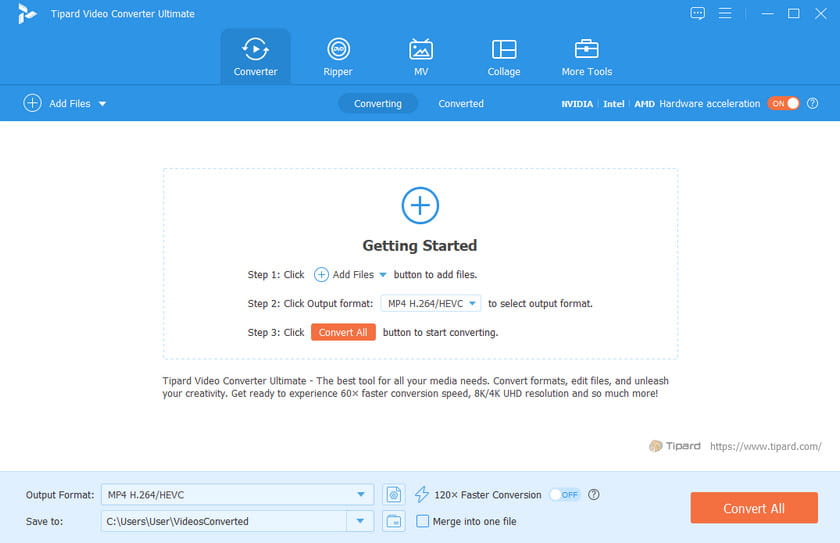
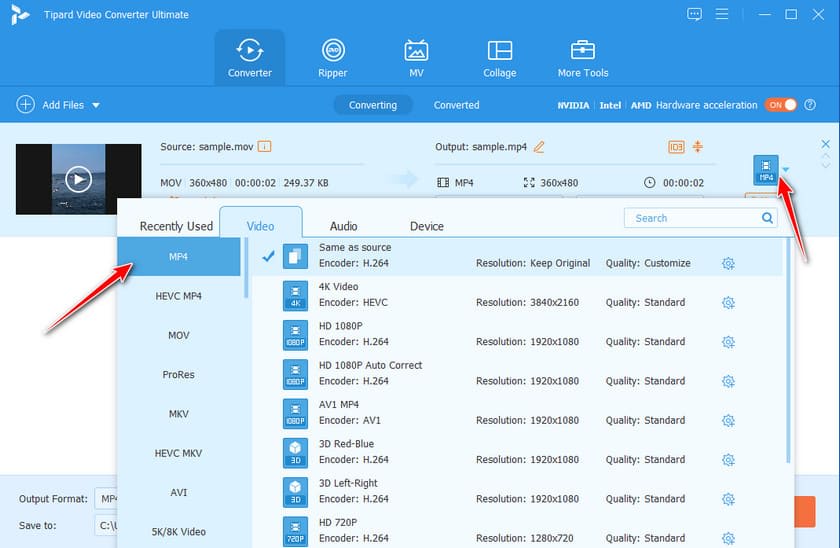
Step 3: Press the Format button on the right and select MP4.
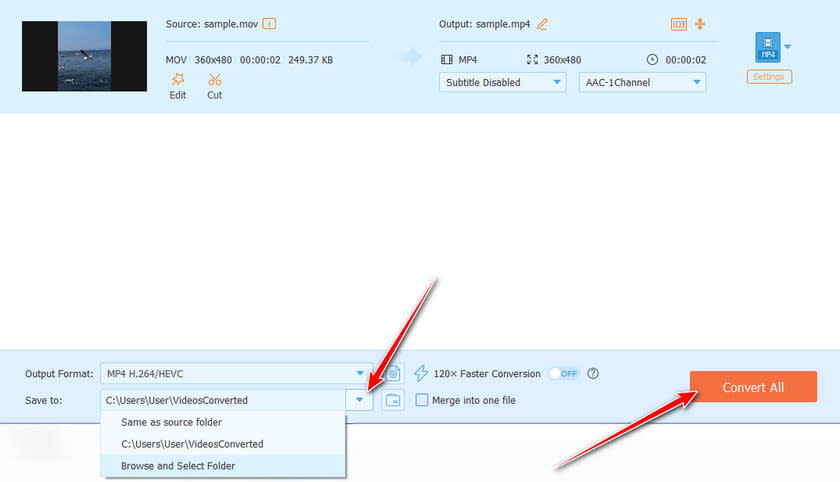
Step 4: Press the downward arrow after Save to at the bottom to set a saving path for your converted MP4 file. Then, press the Convert All button to initiate the process.
Best Free MOV to MP4 Converter Online
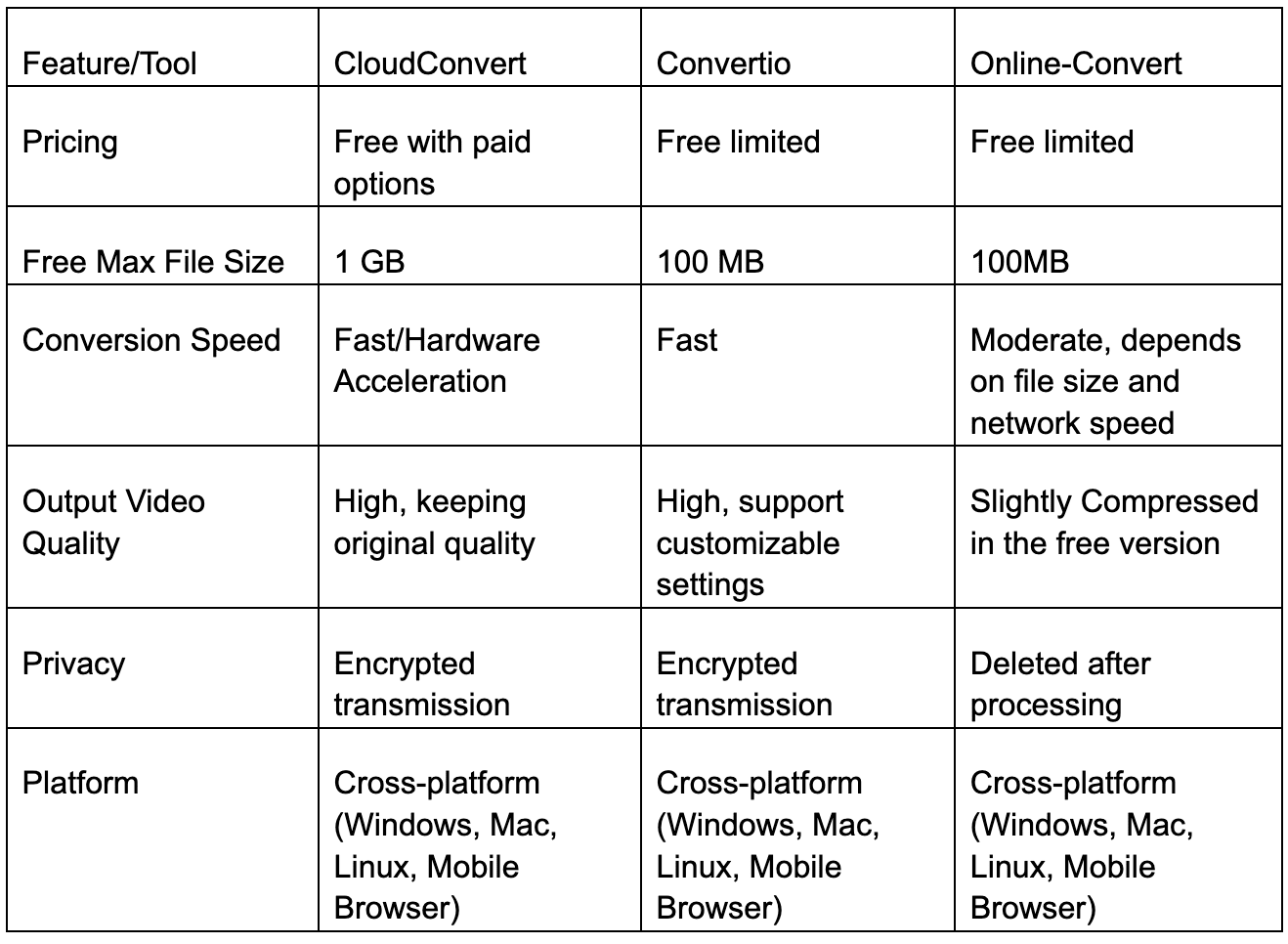
If you find desktop software too complicated to install or use, you only need to convert one or a small number of MOV files quickly without strict requirements for output quality, or you want to convert MOV to MP4 on iPhone, an online MOV to MP4 may be an ideal alternative. Here, we have listed 3 popular free online MOV to MP4 converters and provided a brief comparison for your reference.
Conclusion
Converting MOV to MP4 is really easier than you might think. Whether you’re using a professional tool or a free online converter, you can get it done quickly and easily. Hope you can find the way that suits you best and convert MOV files to MP4 to store, share, and play on any device easily!
Comments
Loading comments…