
Introduction
PDF files are great for sharing and viewing. They look identical whether you open them on a phone, computer, or tablet. But when you want to edit, it becomes frustrating.
The main issue is that PDFs block your content into a fixed format. You can't easily select and modify text, move images around, or restructure the document without starting from scratch. Editing directly in a PDF often requires expensive software or a frustrating procedure that consumes your time.
The simple solution is to convert that PDF into a Word document. You get a genuinely editable document where you can change text freely, adjust layouts, reorganize content, and actually work with your information instead of fighting the format.
This article guides you through the exact steps, including what to check before you start, how to handle formatting issues, and how to ensure your final Word document is ready to use.
Before You Start: What to Check Before Converting a PDF to Word
Before uploading your PDF, assess its type. This helps you understand what to expect after conversion. Understanding your PDF's structure helps you prepare for the converted result and know what to review before using the Word file.
Check these details:
· Is the PDF text-based or scanned? Text-based PDFs convert smoothly into editable Word documents. Scanned PDFs may need extra processing and manual adjustments.
· Does it have complex layouts? Multi-column designs, special fonts, or unusual spacing may not transfer perfectly to Word format.
· Are there tables, charts, or images? These elements usually transfer but may need formatting adjustments afterward.
· What's the file size? Most online PDF to Word converters handle standard files quickly, but very large PDFs might take longer.
How to Convert PDF to Word Step by Step?
There are many PDF-to-Word converters available online, each with different interfaces and features. For this article, we'll use TeraBox, an online converter that handles the job quickly without requiring software installation or account creation. The process is simple: upload your PDF, convert it, and download your Word file—all in your browser.
Now let's get to the practical part. Here's exactly how to convert PDF to Word online using TeraBox:
Step 1: Go to the TeraBox offical website in your web browser
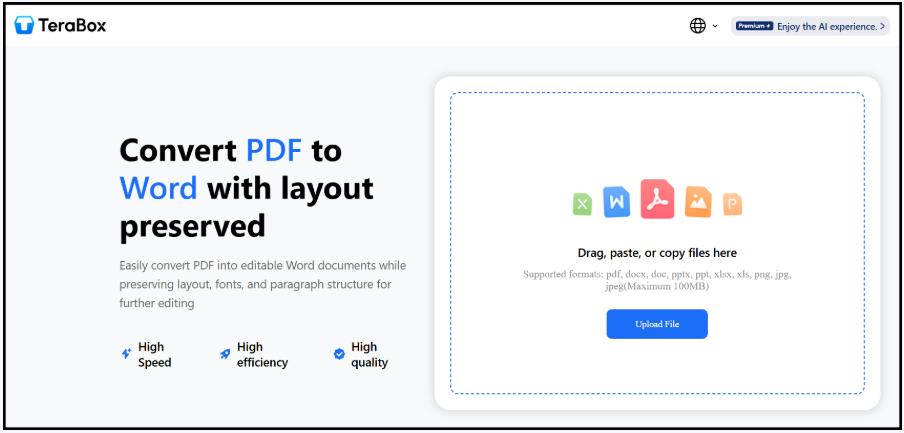
Step 2: Upload your PDF file while clicking the upload button or drag and drop your PDF file
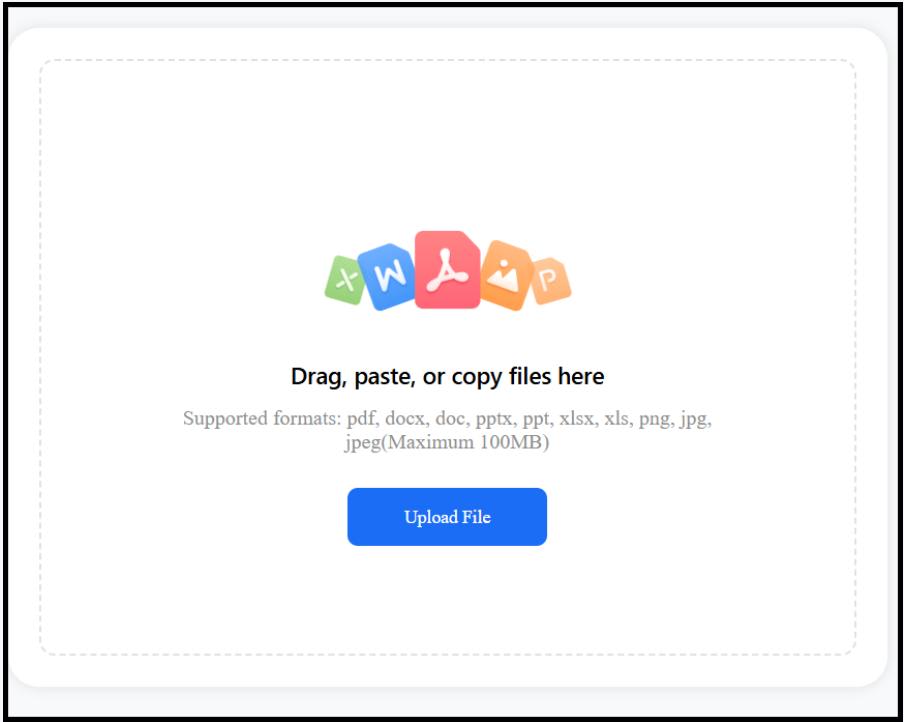
The converter will analyze your PDF and prepare it for conversion.
Step 3: Once your PDF is uploaded, click the "Convert" or "Start Conversion" button
Step 4: When conversion is complete, click the "Download" button. Your file will be saved as a .DOCX (Word) file to your computer.
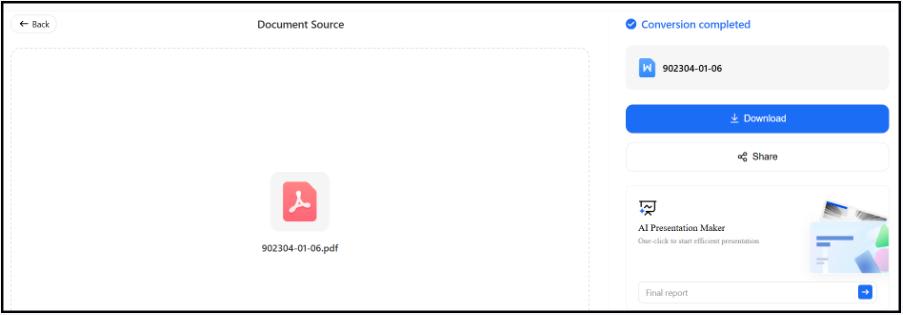
That's it! You now have an editable Word document converted from your PDF.
What If Your PDF Is Scanned or Image-Based?
Not all PDFs are created equally. Text-based PDFs contain actual text that can be selected and edited. When you convert PDF to Word, the text transfers cleanly into an editable Word file.
Scanned PDFs are basically photos of documents. They look like text on screen, but they're actually images. Converting a scanned PDF to Word is trickier because the converter needs to recognize the text in the images (a process called OCR—Optical Character Recognition).
What you should know about scanned PDFs:
- Conversion may take longer
- The result might have spelling errors or character recognition issues
- Text might need manual correction
- Formatting usually requires adjustment
- Some scanned PDFs convert better than others, depending on image quality
If your scanned PDF doesn't convert perfectly, you may need to manually type certain sections or use the converted file as a reference rather than relying on it completely.
Common Use Cases for PDF to Word Conversion
Here are real situations where converting PDF to Word saves time:
1. Editing Resumes and Cover Letters
You found a resume template in PDF format, but you need to customize it with your information. Converting it to Word allows you to edit text, do formatting, and tailor according to your need; much faster than recreating the document from scratch.
2. Updating Business Reports
Your company receives a PDF report that needs revisions. Instead of manually retyping information, convert PDF to Word and edit the content directly. This saves hours of work and reduces copy errors.
3. Modifying Contracts and Legal Documents
Contract templates often come as PDFs. Converting to Word allows you to add your specific terms, dates, and signatures without needing specialized legal software.
4. Reusing Class Notes and Study Materials
You have study notes in PDF format from a course or textbook. Converting them to Word lets you reorganize, highlight, add your own notes, and create personalized study guides.
5. Extracting Data from Forms
If you received a filled-out PDF form, you can convert PDF to DOCX to extract the information and use it in spreadsheets, databases, or new documents.
6. Preparing Documents for Collaboration
PDFs aren't ideal for teamwork. Converting to Word makes it easy to share the document with colleagues, add comments, enable track changes, and collaborate in real time.
FAQs: Common Questions About PDF to Word Conversion
1. Can I convert any PDF to Word?
Most PDFs can be converted to Word format. However, PDFs with complex graphics, multiple columns, or scanned content may need formatting adjustments. Simple text-based PDFs convert most smoothly.
2. Will my formatting stay the same when I convert PDF to Word?
Basic formatting usually transfers (bold, italics, colors), but complex layouts may shift. Tables, images, and spacing sometimes need manual adjustment in the Word file. Always review your converted document before using it.
3. How do I convert PDF to Word online?
Use an online PDF to Word converter like TeraBox. Upload your PDF, click convert, and download the Word file. No software installation needed—it's quick and works in your web browser.
4. What's the difference between PDF and DOCX format?
PDFs are fixed documents designed to look identical everywhere. DOCX (Word format) files are editable—you can change text, adjust formatting, and modify content. Converting PDF to DOCX gives you this flexibility.
5. Can I convert a scanned PDF to Word?
Yes, but with limitations. Scanned PDFs may not convert into fully editable text without OCR processing. The result might have errors and require manual proofreading and editing.
6. Is converting PDF to Word free?
Many online PDF to Word converters offer free conversion. Some have file size limits or require an account. Check the tool's terms before uploading sensitive documents.
Conclusion
Converting your PDF to Word is one of the simplest ways to make static documents editable. Whether you're updating a resume, revising a contract, or preparing materials for a team project, a quick PDF to Word conversion gives you the flexibility to edit, adjust, and customize your content.
Remember: the conversion process is fast, but always spend a few minutes reviewing the Word file afterwards. Check the formatting, verify that tables and images are in the right place, and make any necessary tweaks. This small step ensures your converted document is ready to use.
If you need a straightforward way to convert PDF to Word online, TeraBox AI offers a simple, browser-based solution that gets the job done without fuss. Upload your file, hit convert, download your Word document, and start editing—all in minutes.
Ready to convert your first PDF? Try it today and experience how much easier it is to work with editable Word documents.
Comments
Loading comments…