Claude Code’s /loop command and Desktop scheduling transform AI coding assistants from synchronous query-response tools into asynchronous autonomous agents. This article covers the /loop interval syntax, one-shot reminders, the underlying CronCreate/CronList/CronDelete tools, execution model details including jitter and the 3-day safety expiry, Desktop persistent scheduling via /schedule and the Cowork sidebar, and five practical patterns from deployment monitoring to morning briefings.
“You keep switching back to the terminal, typing the same status check, scanning the output, and switching away again. Claude Code’s /loop command eliminates that context-switching tax entirely.”
You are debugging a deployment. The build kicked off twenty minutes ago. You keep switching back to the terminal, typing the same status check, scanning the output, and switching away again. Multiply that by every long-running process, every PR waiting for CI, every staging environment you need to babysit. That context-switching tax adds up fast.
Claude Code’s /loop command and its cron scheduling tools eliminate that tax entirely. Define a prompt once, and Claude re-runs it automatically on an interval. Poll a deployment. Babysit a PR. Check back on a long-running build. Remind yourself to push the release branch at 3pm. You stop being the one who checks. Claude becomes the one who watches.
This is not a minor quality-of-life feature. It is shift in how AI coding tools operate: from synchronous query-response to asynchronous autonomous agents.
Bundled Skills: Where /loop Fits
Before diving into /loop, it helps to understand where it fits. Claude Code ships with five bundled skills: prompt-based playbooks that Claude orchestrates using its tools. Unlike built-in commands (like /help or /compact) that execute fixed logic, bundled skills can spawn parallel agents, read files, and adapt to your codebase.

I covered /simplify, /batch, and the broader skills system in depth in a previous article on Claude Code Agent Skills 2.0. This article focuses on /loop, its underlying cron tools, and the Desktop /schedule command.
Two Tiers of Scheduling
Before diving into syntax and examples, it helps to understand the two distinct scheduling systems Claude Code provides. Each serves a different durability requirement, and picking the right one saves you from surprises.
Tier 1: CLI session-scoped tasks use /loop and the underlying cron tools. They live inside your current Claude Code process and disappear the moment you close the terminal. They are fast to set up and perfect for in-session polling. Think of them as sticky notes on your monitor: useful right now, gone when you leave.
Tier 2: Desktop persistent tasks (in Claude Desktop’s Cowork) survive restarts, run on a visual schedule, and fire as long as the Desktop app is open. They are better suited for daily briefings, weekly reports, and recurring workflows that outlive any single terminal session. Think of them as calendar events: they show up whether you remember them or not. (You can use them from CoWork or Claude Code tab in the desktop app).
Both tiers share the same underlying cron engine. The difference comes down to scope and persistence. The rest of this article walks through each tier in order of complexity, starting with the simplest approach and building toward fully persistent automation.
The /loop Command: Schedule in Seconds
The /loop command is the fastest path to a recurring task. Pass an optional interval and a prompt:
/loop 5m check if the deployment finished and tell me what happened
Claude parses the interval, converts it to a cron expression, schedules the job, and confirms the cadence and job ID. That is the entire setup. No configuration files, no YAML, no dashboard. One line, and you are polling.
Interval Syntax
How flexible is the interval parsing? Quite flexible. You can lead with the interval, trail with it, or leave it out entirely:
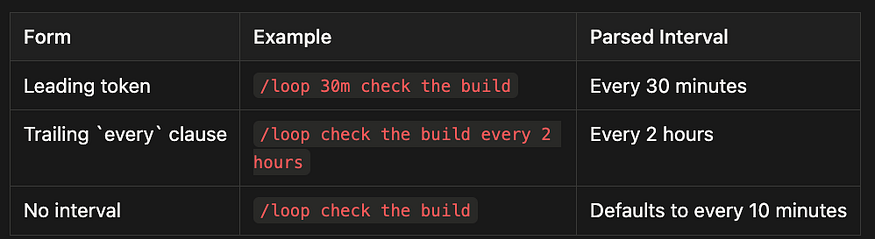
Supported units include s (seconds), m (minutes), h (hours), and d (days). A few edge cases are worth noting. Seconds are rounded up to the nearest minute because the underlying cron engine has one-minute granularity. Intervals that do not divide evenly into an hour, like 7m or 90m, get rounded to the nearest clean interval. Claude tells you what it picked.
Looping Over Other Commands
Here is where /loop gets genuinely powerful. The scheduled prompt can itself be a slash command or skill invocation:
/loop 20m /review-pr 1234
Every time the job fires, Claude runs /review-pr 1234 as if you had typed it yourself. You can chain any skill into a recurring schedule: code reviews, test runs, deployment checks, linting passes. This turns /loop from a simple timer into a composable automation primitive.
One-Shot Reminders
Not every scheduled task needs to recur. Sometimes you just need a nudge at a specific time. For those cases, skip /loop and use natural language:
remind me at 3pm to push the release branch
in 45 minutes, check whether the integration tests passed
Claude pins the fire time to a specific minute and hour using a cron expression, confirms when it will fire, and automatically deletes the task after it runs once. No cleanup required on your end.
Under the Hood: The Cron Tools
What powers /loop and natural-language reminders behind the scenes? Three tools that Claude calls internally. You can also reference them directly when you need precision:
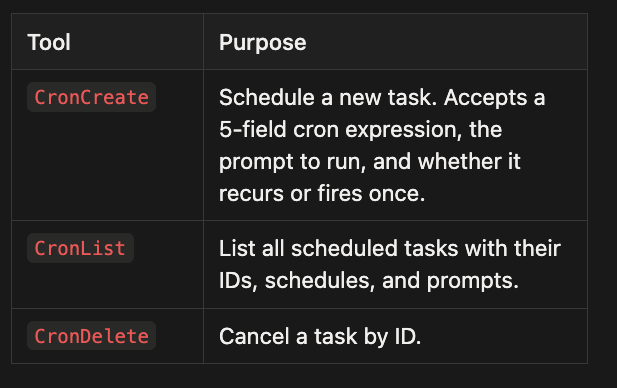
Each task gets an 8-character ID for management. A session can hold up to 50 scheduled tasks at once.
Cron Expression Reference
CronCreate accepts standard 5-field cron expressions: minute hour day-of-month month day-of-week.
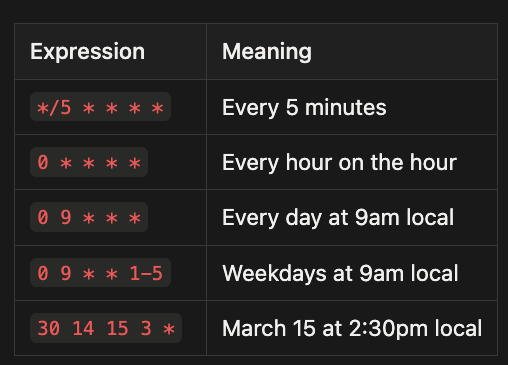
All times are interpreted in your local timezone, not UTC. Day-of-week uses 0 or 7 for Sunday through 6 for Saturday. Extended syntax like L, W, ?, and name aliases (MON, JAN) is not supported.
How Tasks Actually Execute
Understanding the execution model matters because it sets the right expectations for timing and reliability.
Priority. The scheduler checks every second for due tasks and enqueues them at low priority. A scheduled prompt fires between your turns, not while Claude is mid-response. If Claude is busy when a task comes due, the prompt waits until the current turn ends.
No catch-up for missed fires. If a task’s scheduled time passes while Claude is handling a long-running request, it fires once when Claude becomes idle. It does not fire once per missed interval. You will never come back to ten duplicate notifications.
Jitter. To avoid every session hitting the API at the same wall-clock moment, the scheduler adds a small deterministic offset:
- Recurring tasks fire up to 10% of their period late, capped at 15 minutes. An hourly job might fire anywhere from
:00to:06. - One-shot tasks scheduled for the top or bottom of the hour fire up to 90 seconds early.
The offset is derived from the task ID, so the same task always gets the same jitter. If exact timing matters, pick a minute that is not :00 or :30.
The Three-Day Safety Net
Recurring tasks automatically expire 3 days after creation. The task fires one final time, then deletes itself. Why impose this limit? It is a safety bound that prevents a forgotten loop from running indefinitely, consuming API credits and potentially taking unwanted actions.
If you need a task to last longer than 72 hours, cancel and recreate it before it expires. The small inconvenience of renewal is intentional. It forces you to confirm the task still makes sense.
Managing Tasks
Managing your scheduled tasks is conversational. Just ask:
what scheduled tasks do I have?
cancel the deploy check job
Claude translates these into CronList and CronDelete calls behind the scenes. You can also reference task IDs directly if you know them.
Desktop Scheduled Tasks: Persistent Automation
Everything covered so far lives and dies with your terminal session. What if you need tasks that survive restarts and run on a predictable schedule, day after day? That is where Claude Desktop’s Cowork comes in.
Setting Up in Desktop
You have two paths to create a persistent scheduled task.
Option 1: The /schedule command. Open Cowork, create or use an existing task, and type /schedule. Claude walks you through the setup with clarifying questions, then confirms the task name, schedule, and description.
Option 2: The sidebar UI. Click “Scheduled” in the left sidebar, then “+ New task.” Fill in the modal:
- Task name
- Description
- Prompt and instructions
- Frequency (hourly, daily, weekly, weekdays, or manual)
- Model preference (optional)
- Working folder (optional)
What Desktop Scheduling Unlocks
Desktop scheduled tasks access the same tools, skills, and plugins as regular Cowork tasks. That opens up workflows that would be impractical with session-scoped scheduling:
- Daily briefings. Summarize Slack, emails, or calendar events each morning.
- Weekly reports. Compile data from Google Drive or spreadsheets every Friday.
- Recurring research. Track topics or industry news on a regular cadence.
- File organization. Periodic cleanup and sorting of project directories.
- Team status updates. Pull from project management tools and format summaries.
I use this quite a bit already. It feels natural and I can’t remember what it was like before these came out.
Desktop vs. CLI: Choosing the Right Tier
When should you reach for /loop versus a Desktop scheduled task? This comparison makes the decision straightforward:
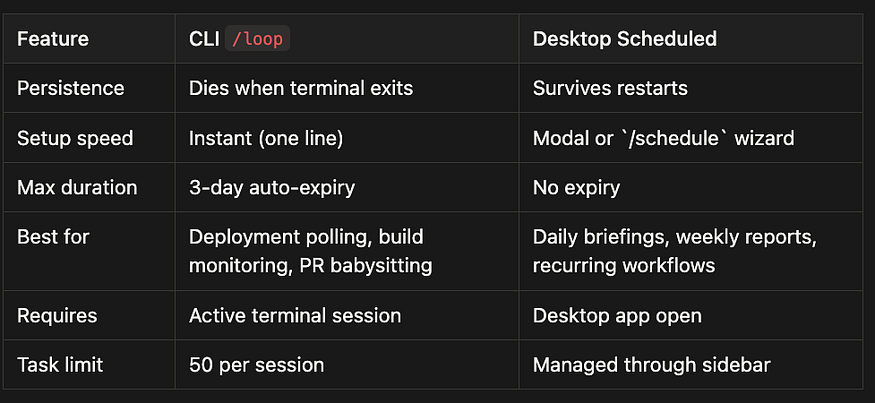
The rule of thumb: CLI /loop is for tasks that matter right now. Desktop scheduling is for tasks that matter every day.
Five Practical Patterns
Theory is useful, but patterns are what you will actually reach for on Monday morning. Here are five that cover the most common scenarios, ordered from simplest to most sophisticated.
Pattern 1: The Deployment Monitor
The scenario. You kicked off a deployment and want to know when it finishes. You do not want to keep checking.
/loop 2m check the deployment status on staging and tell me when it completes
Claude checks every two minutes, reports progress, and you cancel the loop once the deployment lands. This is the “hello world” of /loop: a single command that replaces ten minutes of manual polling.
Pattern 2: The PR Babysitter
The scenario. A PR is waiting for CI and reviewer feedback. You want updates without refreshing GitHub every few minutes.
/loop 15m /review-pr 4521
Every 15 minutes, Claude re-runs the PR review skill, checking for new commits, CI status changes, and reviewer comments. Notice that this pattern composes /loop with another skill. That composition is what makes it more powerful than a simple timer.
Pattern 3: The Autonomous Bug Hunter
The scenario. You want Claude to continuously scan for errors and fix them without your involvement.
Thariq Shihipar, one of Claude Code’s creators, demonstrated this pattern: checking error logs every few hours with Claude automatically generating pull requests for fixable bugs.
/loop 3h scan the error logs in /var/log/app, identify fixable bugs, and create PRs for them
This is the pattern that shifts Claude from a tool you query to an agent that acts on your behalf. It is also the pattern that demands the most trust in your guardrails. Start with a short interval and a low-stakes log directory.
Pattern 4: The End-of-Day Reminder
The scenario. You want a nudge before you close your laptop for the day.
remind me at 5pm to commit my work and push to the feature branch
A single-fire task that catches you before you leave. Simple, practical, and surprisingly easy to forget without automation.
Pattern 5: The Morning Briefing (Desktop)
The scenario. You want a summary of everything that happened overnight, waiting for you when you start work.
Set up a daily scheduled task in Desktop:
- Frequency: Weekdays at 8:30am
- Prompt: “Summarize my unread Slack messages, open PRs awaiting my review, and any failing CI pipelines”
Claude runs this every weekday morning, delivering a briefing before you start coding. Unlike the previous four patterns, this one persists across sessions. That is why it belongs in Desktop rather than the CLI.
The Bigger Picture
Glen Rhodes framed /loop as a shift from synchronous to asynchronous AI tooling: "The developer moves from participant to task-setter." Instead of prompting and reviewing after each response, you define objectives and let Claude operate autonomously.
Andrej Karpathy’s autoresearch project demonstrates the parallel capability: running approximately 100 ML experiments overnight using fixed five-minute training windows per iteration, removing the researcher from direct participation entirely.
But Rhodes also identified the critical caveat: “The failure modes are also three days long.” Extended autonomous operation creates risks in error recovery and rollback management. A loop that takes a wrong turn at hour two has seventy hours to compound the mistake.
The practical advice is clear. Start with short intervals and low-stakes tasks. Deployment polling and build monitoring are ideal first uses. Graduate to longer-running autonomous workflows as you build confidence in the guardrails.
Disabling Scheduling
If your organization wants to prevent scheduled tasks entirely, set the environment variable:
CLAUDE_CODE_DISABLE_CRON=1
This disables the scheduler, makes the cron tools and /loop unavailable, and stops any already-scheduled tasks from firing.
Quick Reference
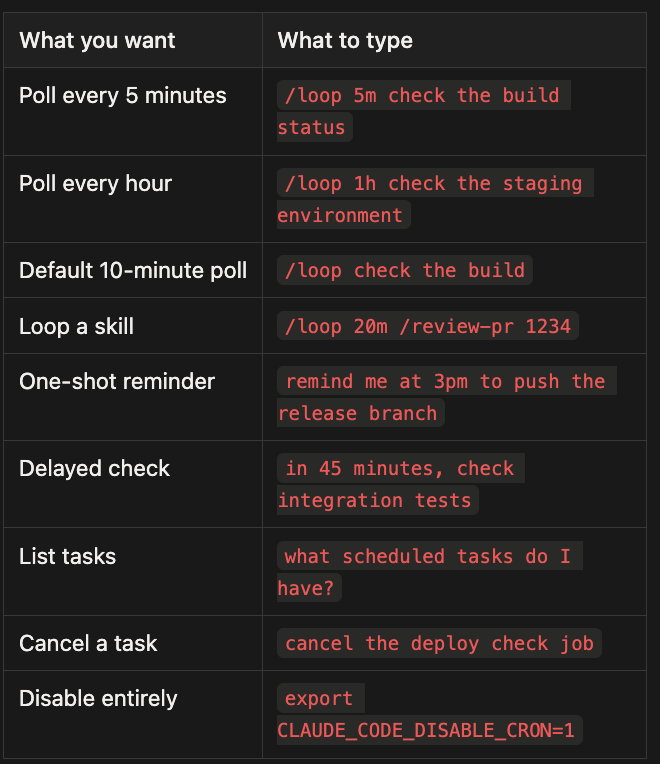
Claude Code’s scheduling features are available in the CLI (session-scoped via /loop) and in Claude Desktop's Cowork (persistent via /schedule). For automation that needs to run unattended without any local app, consider GitHub Actions workflows with a schedule trigger.
Sources: Claude Code Docs: Run prompts on a schedule, Claude Help Center: Schedule recurring tasks in Cowork, The Decoder: Anthropic turns Claude Code into a background worker, Glen Rhodes: Claude Code /loop analysis, Geeky Gadgets: Claude Code Loop Guide 2026.
About the Author
Rick Hightower is a technology executive and data engineer who led ML/AI development at a Fortune 100 financial services company. He created skilz, the universal agent skill installer, supporting 30+ coding agents including Claude Code, Gemini, Copilot, and Cursor, and co-founded the world’s largest agentic skill marketplace. Connect with Rick Hightower on LinkedIn or Medium. Rick has been doing active agent development, GenAI, agents, and agentic workflows for quite a while. He is the author of many agentic frameworks and tools. He brings core deep knowledge to teams who want to adopt AI.
Comments
Loading comments…