A busy workday can quickly turn into a document-management problem. One moment, you're reviewing a business agreement, the next, you're searching for a payment clause, correcting a paragraph or marking a section that needs attention before a meeting. When documents arrive as PDFs, even small tasks can become frustrating if the right tools aren't available.
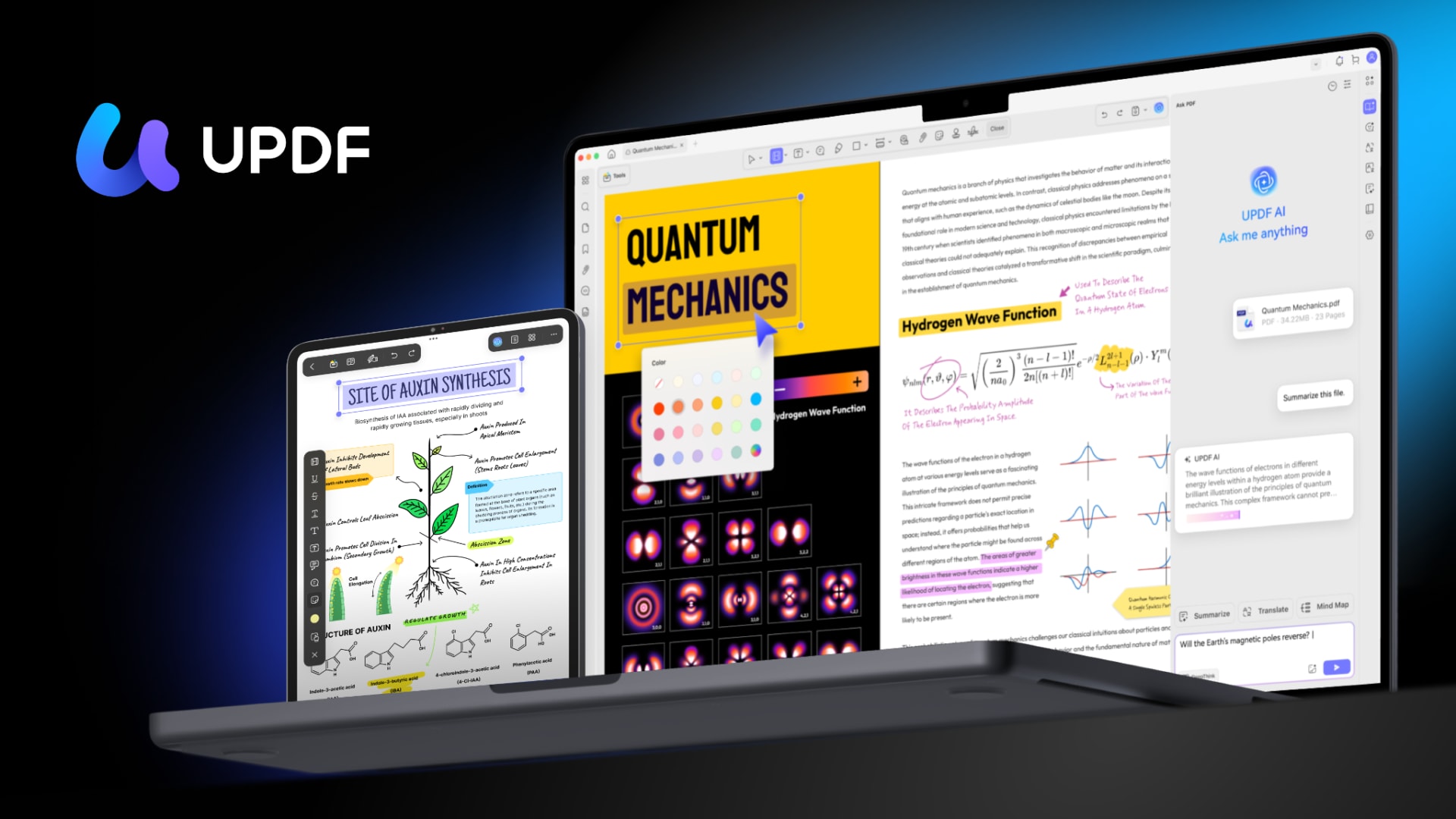
This is where an all-in-one PDF application can be useful. UPDF PDF editor combines traditional document tools with AI-assisted analysis, optical character recognition (OCR), editing and annotation. To see how these features work in practice, I used a business agreement as the basis for a series of hands-on tests.
Using AI to Understand a Business Agreement
Imagine preparing for a meeting and receiving an agreement containing payment terms, publication obligations, revision limits, and cancellation conditions. Reading every clause is important, but finding the main points quickly can make the initial review easier.
I tested UPDF AI by asking it to summarize an agreement in plain English, identify the parties' obligations, explain refund conditions, and highlight potential risks. The response organized the information into sections covering responsibilities, revisions, refunds, traffic-related disclaimers and limitations.
I then asked the AI to examine individual clauses and explain their practical implications. It produced a table connecting the wording of selected clauses with what those terms could mean for the client. For example, it explained that a clause disclaiming responsibility for traffic and pageviews means the client is not promised a particular level of readership.
This structure made the information easier to scan than a long block of contractual language. It also provided a useful starting point for identifying questions that might need further attention.
However, the results still need human review. The second response displayed only some of the requested clauses, so I couldn't treat it as a complete analysis of the entire agreement. AI summaries can help organize information, but important obligations and financial terms should always be checked against the original document.
Making Scanned PDFs Searchable With OCR
Scanned paperwork presents a different challenge. A PDF may look perfectly readable on screen while behaving like a photograph of a page. Finding a specific phrase or copying a sentence becomes difficult when the document has no recognized text layer.
UPDF offers OCR to recognize text in scanned documents. During testing, the application required an additional OCR component before I could proceed. After completing the setup, I generated a searchable PDF from a business agreement.
The results were straightforward to verify. I pressed Ctrl + F and searched for the heading “Cancellation and Refunds.” The search worked. I could also select and copy text and the copied wording matched the source document.
This was one of the clearest practical benefits I observed. Instead of treating the agreement as a static image, I could search through its contents and reuse recognized text. That can be helpful when reviewing archived paperwork, invoices, contracts or other scanned records.
OCR accuracy can vary with scan quality, unusual fonts, handwriting, and complex layouts. My test produced accurate text, but that result shouldn't be taken as a guarantee for every document. Important dates, names, amounts, and contractual terms should still be checked.
Editing a PDF Without Rebuilding It
Sometimes the information is already correct, but a document needs a small change before it can be shared. Recreating the file in another application just to edit a sentence can add unnecessary work.
I tested UPDF's PDF editing tools by changing text in the document. The process was very easy, the text was editable and the formatting remained correct after the change.
That matters in everyday work because a successful edit involves more than changing the words. The surrounding text, spacing and overall page layout should remain usable too. In my test, the formatting held up as expected.
For people who regularly update reports, correct document details or prepare files for review, this kind of direct editing can make PDF work more convenient. The result will naturally depend on the document's structure, especially when dealing with complicated layouts or scanned pages.
Highlighting Important Details and Adding Comments
Editing isn't always about changing the original wording. Sometimes the more useful task is marking a sentence, highlighting an important clause, or leaving a comment for someone to review later.
UPDF's annotation tools support this type of document review. Highlighting can draw attention to a deadline or payment condition, while comments can identify questions that need to be discussed before a document is approved.
In a typical workday, these tools can help keep review notes alongside the relevant material rather than scattering them across separate documents or messages.
I also tested highlighting and adding a comment, and both worked successfully. That makes annotation a useful part of the same workflow to understand the document, locate important details and mark anything that needs follow-up.
Where UPDF Fits Into an Everyday Workflow
The value of UPDF is not limited to any single feature. Its AI assistant helps organize and interpret document contents, OCR makes scanned text searchable, editing handles changes to the PDF itself, and annotations support review and collaboration.
These tools address different stages of the same task. Someone reviewing an agreement might start by summarizing the document, search for a particular clause, edit a permitted section and highlight the points that need discussion. Having those capabilities in one application can make the workflow feel more connected.
There are still considerations before choosing a PDF editor. OCR may require an additional download, AI-generated interpretations need verification and advanced features may depend on the selected subscription. People handling confidential business documents should also review the service's privacy terms and their organization's rules before submitting sensitive files to AI tools.
Occasional PDF readers may not need such a broad toolkit. People who frequently work with scanned documents, contracts, reports, and files requiring revisions are more likely to find the combination useful.
Is UPDF Worth Considering?
My hands-on tests showed practical benefits in several everyday tasks. UPDF AI produced a structured summary and explained selected contractual clauses, although the clause-by-clause response did not display the entire requested range. OCR successfully made the tested agreement searchable and allowed accurate text copying. PDF editing was easy and the document's formatting remained intact. Highlighting and comments also worked as expected.
These results suggest that UPDF is worth considering for people who regularly handle PDFs as part of their work. Its combination of AI assistance and conventional document tools provides a practical way to move from reading and searching to editing and reviewing.
Before committing, compare UPDF's pricing and plans with the features you expect to use. The right choice depends on your workload, budget and need for tools such as OCR and AI-assisted analysis.
Ultimately, UPDF's strongest appeal is the way its features fit together. It won't eliminate the need to check important information, but it can make several common PDF tasks easier to manage during a busy workday.
Further Reading
Discover more articles on similar topics across our network
10 Best AI Medical Receptionists for Calls, Bookings, and CRM Updates in 2026
Stackademic
Synthesia Pricing 2026: Plans, Credits and the Real Cost Per Minute
Stackademic
Comments
Loading comments…