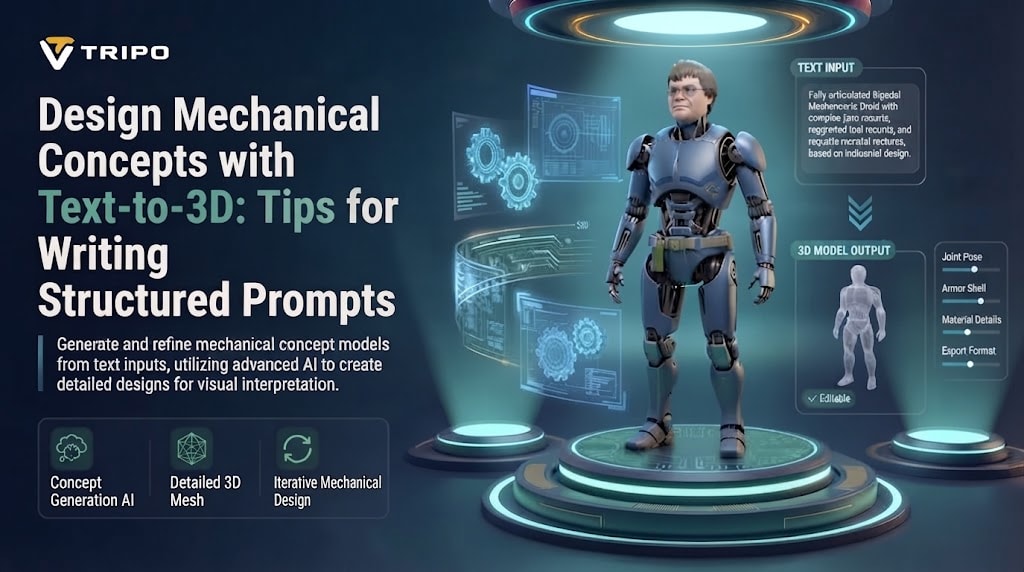
Text-to-3D modeling provides a useful means of investigating mechanical ideas by means of organized visual description and structured instructions. Mechanical forms require focus on parts, proportions, relationships, symmetry, openings, and relationships between closely placed parts for specific purposes. Structured prompts help make those requirements more explicit as a coherent 3-D concept without making any assumption of verified engineering performance. Tripo 3D offers a process to create prototype-ready models from text description and geometry variables.
Structuring Mechanical Ideas Before Writing Prompts
Mechanical prompts are more effective when you break down the overall structure into its parts. Start with housing, describe joints, panels, supports, fasteners, openings, controls and other easily recognized mechanical features. When descriptions are given with a logical structural hierarchy, a detailed AI 3d model generator can consistently interpret relationships. Dimensional relationships also help to make it clear if a component looks wider, thinner, shorter, centered, recessed, or if it is placed on top of another. Distinguish between functional appearance and assumptions of load capacity, tolerances, material characteristics, and engineering performance.
Building Structured Prompts for Mechanical Geometry
A structured prompt can include a series of steps that include subject, overall shape, parts, proportions, materials, and visual style. Begin with the main structure and work up to the secondary details; careful hierarchy differentiates the major geometry from the surface decoration. Repeated bolts, paired supports, symmetrical panels, and interconnected assemblies can be described using consistent terminology with consistent interpretation. Explain the geometry in a visible manner, rather than by using implied functions like cooling, clamping, rotation or bearing. If you are mixing an image to 3d model workflow with refinement, talk about the things you see, and not about things that you don't see.
Steps to Design Mechanical Concepts Through Text to 3d Model Structured Prompt Input
Step 1: Set Up Your Mechanical Design
- Start by visiting Tripo3d and signing up. After that, select the "Model" tab from the vertical left menu bar to begin your design workflow.
- Under this menu, choose "HD Model" when you want to create a detailed mechanical concept.
- Next, select the "Text to Model" tab and describe the shape, components, and structure you want to generate.
Step 2: Configure Structural Model Settings
- Open "General settings" and customize the "Geometry and Texture" settings for your mechanical concept. You can enable "Ultra Mesh Quality" when you want more detailed and realistic geometry.
- The "AI Complete" switch in the "Geometry & Texture panel" enables AI to generate both geometry and texture. It brings both generation functions together within the panel. If needed, you can enable texture generation separately and select 2K, 4K, or 8K using "Texture Quality".
- Turn on "PBR" when you want more accurate reflective material properties across the generated surfaces.
- For suitable topology characteristics, select either "Quad" or "Triangle" based on your design needs.
- Set a custom polycount to control how much geometric detail you want in the mechanical model.
- Try "Generate in Parts", "8K Texture", and "Privacy" from the Members Only area with "Trial x1" available each session. Note: "Generate in Parts" is separately charged in points.
- Choose one of Tripo's supported models. You can currently select "V3.1", "V3.0", or "V2.5", depending on your desired quality, stability, and generation scenario. Note: "V3.1" may take longer to return results.
- After reviewing your selections, click "Generate Model" and let Tripo create the mechanical concept.
Step 3: Inspect and Export the Structure
- After generating your design, switch among several display modes to review it. Available modes include Wireframe Mode, White Model View, Texture View, Shader, and HDRI. You can improve the model further by clicking "Refine" below.
- You can modify the "Environment Settings" to change how the model appears. Use "Reset Camera" when you need to adjust the camera view.
- You can send the design for "3D Print" or use the "Share" option to share your mechanical concept with others.
- To save the final design, open "Export" from the bottom menu. Choose the resolution, format, and filename, then click "Export" again to save it locally.
Enhance and Export the Generated Mechanical Concept
Review the created model in Normal, Solid View, Cartoon Style, Sketch Style, or Hologram Style view. Texture View and other display modes let you inspect surfaces, materials, and geometric detail. Use Refine to make specific geometry adjustments after the initial model generation. Adjust Environment Settings, and use Reset Camera to view mechanical forms from more advantageous and informative angles. Use 3D Print to prepare concepts for physical fabrication workflows, which require further checks for suitability before printing. If the model is to be presented or co-viewed, select Share instead of exporting the model locally. Click Export, choose the resolution, format, and file name, and save the edited mechanical asset locally.
Mechanical Geometry Elements Worth Defining
- Enclosures and housings: Use spatially specific language to describe outer boundaries, openings, panels, edges, and the thickness of structures.
- Joints and connectors: State clearly the visible hinges, brackets, rotational structures, attachment points and relationship between connected components.
- Control surfaces: Recognize buttons, switches, screens, handles, controls and their position in larger mechanical structures.
- Support structures: Identify frames, legs, braces, rails, mounting points and relationships between supporting structural elements.
- Repeated components: Use consistent language for describing bolts, vents, panels, teeth, fins or repeated components.
- Surface features: Use spatial language to describe grooves, seams, bevels, ridges, recesses and raised mechanical features.
Refining Mechanical Concepts Through Geometry Settings
The topology and the number of polygons determine the degree of flexibility of a generated mesh during editing, visualization and later asset preparation. Quad topology can be used for editing workflows, and triangle topology for generated geometry and downstream use. Increased geometric density may be used to visually represent complex panels, curved surfaces, bevels, and mechanical features that are close together. However, more polygons also add to the complexity of the assets, potentially impacting editing, processing, texturing and export workflows. Geometry decisions should thus be based on the use of the geometry, not necessarily on how dense the mesh can be. There is a text to 3d model workflow, and geometry relies on prompt quality and settings. Forms generated should be a visual interpretation of ideas, and not engineering specifications, tolerances, stress limits or manufacturing requirements that have been verified.
Evaluating Generated Mechanical Forms
Once generated, review symmetry, component relationships, proportions, openings, intersections and important structural features from multiple perspectives. Carefully compare paired components, as small differences can be apparent when assemblies rely on visual symmetry. Various viewing modes can reveal geometry problems that may not be apparent on textured surfaces or in materials. Explore hidden spaces, overlapping components, openings, and attachment relationships from different angles using camera adjustments. If inconsistencies are found, tweak the prompt by editing the relevant description rather than rewriting each part of the prompt. When correcting a geometric problem that is visible, state the location, orientation, proportion or surface structure precisely. Through the repeated process of refinement, usable 3D assets can be created, and the mechanical concept kept organized and understandable.
Conclusion
Structured prompt input provides mechanical concepts with a clearer path from written descriptions to three-dimensional forms that are interpreted. The concept overall is affected by component hierarchy, geometric relationships, topology, polycount and visual refinement. Tripo 3D offers a combination of geometry, texture, inspection, refinement and export to support mechanical exploration. Through careful prompting and deliberate settings, it is possible to develop assets that can be edited to visualize, iterate, and design further.
Further Reading
Discover more articles on similar topics across our network

Comments
Loading comments…